
Developer guide
Application launch
For a code walkthrough, start with Application launch. It follows alto/__main__.py from the terminal command to the first click on an exercise tile.
Run python -m alto from the repository with the project environment active. The installed alto command and the packaged desktop launcher also call main() in alto/__main__.py.
On a normal launch, main() creates the Qt QApplication, applies the saved theme, and opens Alto’s SQLite database. The next window depends on the profiles in that database. Select a numbered region in any screenshot, or use the links beneath it, to open the API reference for the class that owns or draws that component.
First launch
An empty database opens the welcome dialog. Create profile passes the name to Database.add_profile(). A valid name closes the dialog with the new profile selected. Closing this dialog without creating a profile exits Alto before it opens the main window. Database API
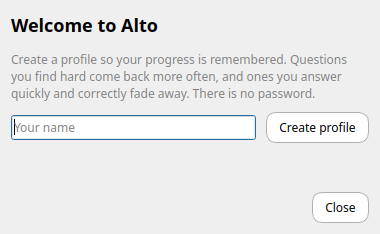
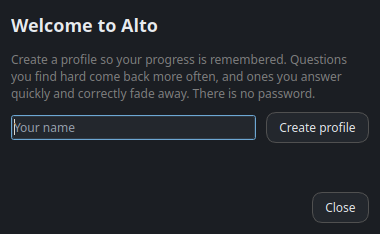
- Name field and Create profile button ·
ProfileDialog
Returning profiles
startup_profile() first looks for the last-used profile. If it finds one, Alto opens it directly. If there is no remembered match, Alto uses the only profile in the database or, when there are several, opens the chooser shown below. Both the welcome screen and the chooser come from ProfileDialog. Profile selection code
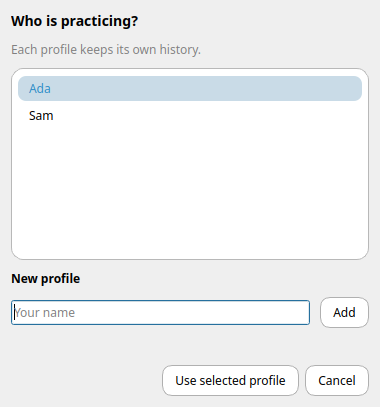
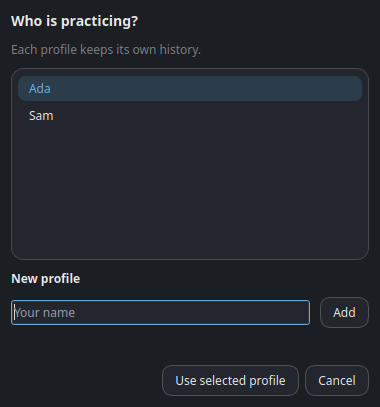
- Saved profile list ·
ProfileDialog
The main window
Once a profile is selected, main() constructs a Learner for it, passes the learner to MainWindow, calls window.show(), and enters Qt’s event loop with app.exec(). From here a click on a tile or toolbar button determines what code runs next. Learner API
On the first launch, the main window opens to the exercise tiles. The toolbar and search field belong to MainWindow. The catalog beneath them is a HomePage, which lays out the tiles and emits exercise_chosen when a learner picks one. Alto remembers whether the catalog last showed exercises or lessons.
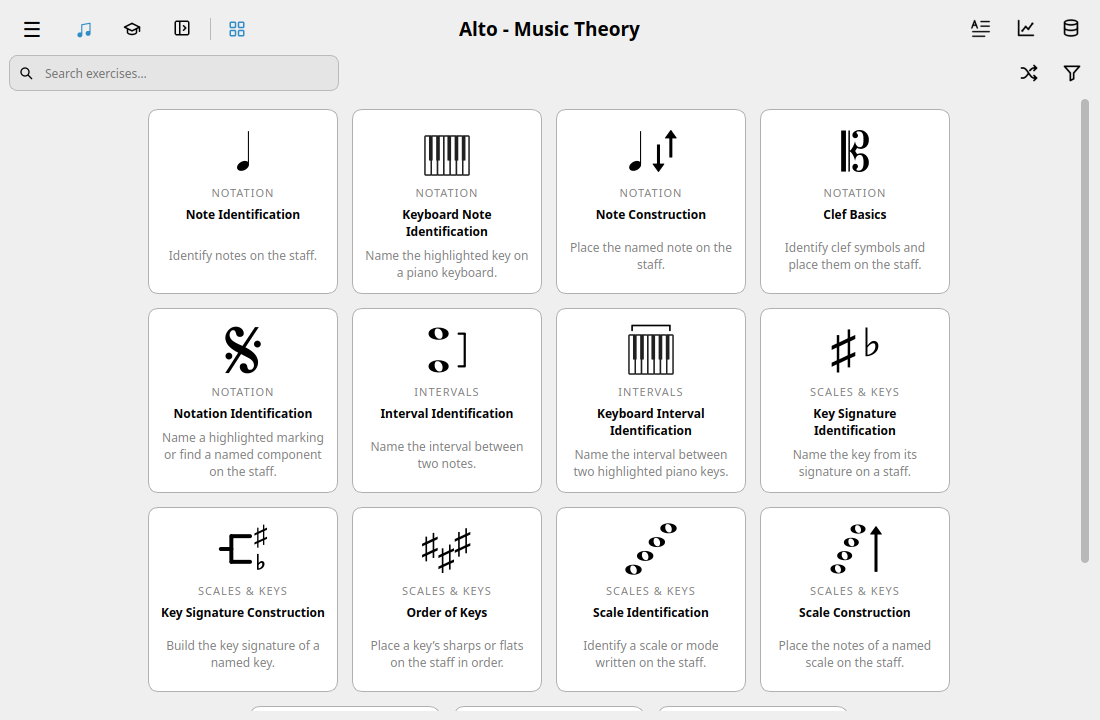
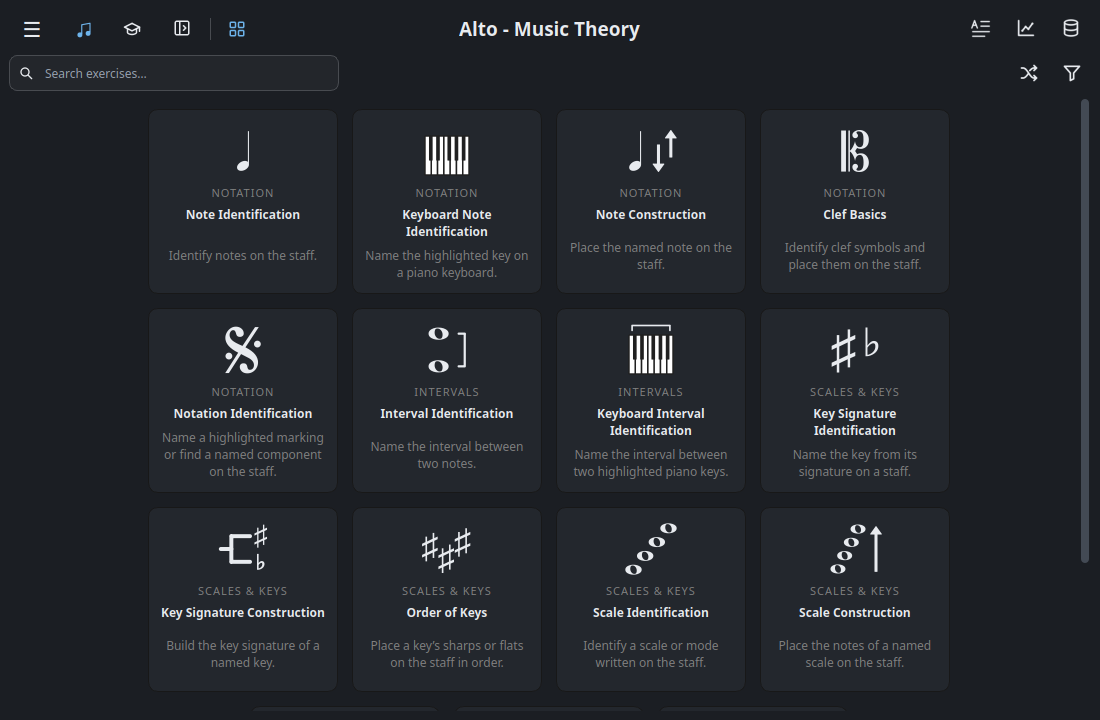
- Exercise and lesson switch ·
SegmentedControl - Search field ·
MainWindow - Note Identification tile ·
ExerciseCard - Exercise catalog ·
HomePage
Screens reached from the main window
Exercise workspace
Choosing Note Identification calls MainWindow.open_exercise(). It opens an ExerciseView for the exercise and connects it to the active learner. The staff is a separate widget. When tracing a misplaced note, start with StaffWidget. For a click on an answer button, start with ExerciseView.
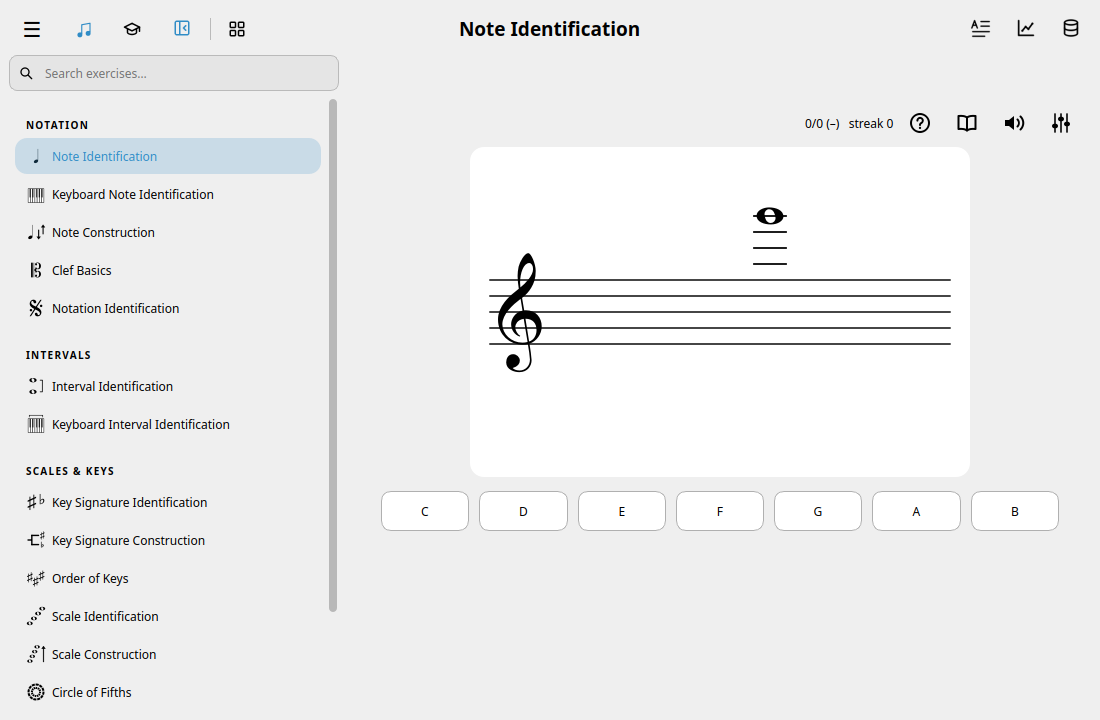
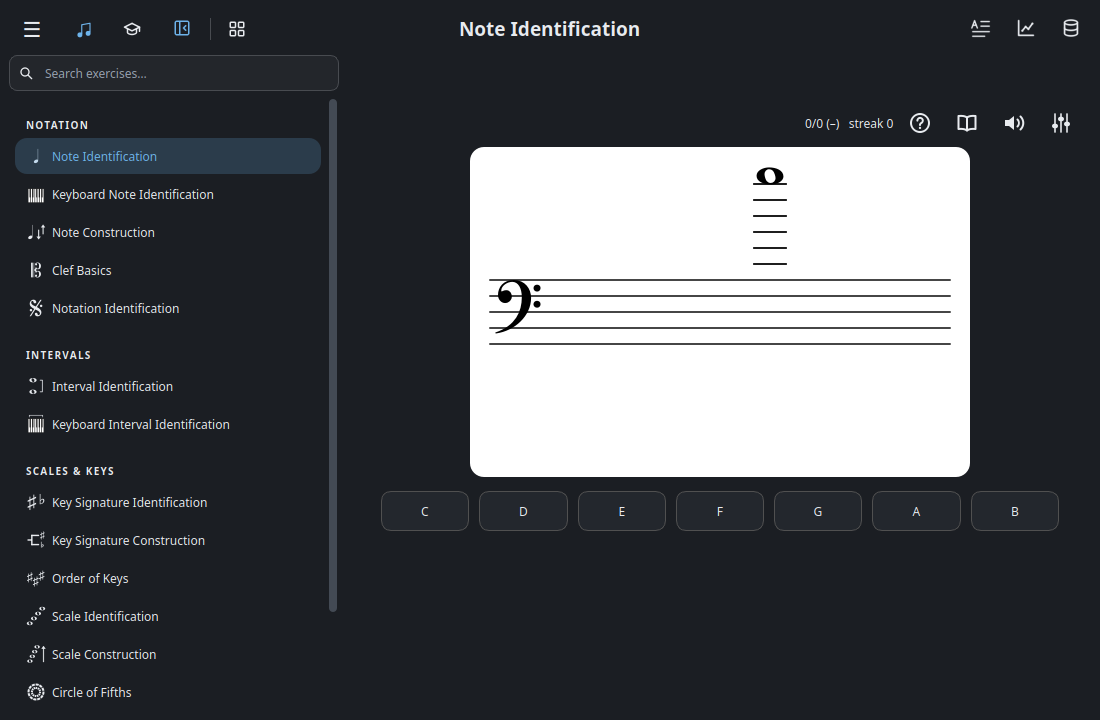
- Exercise list ·
MainWindow - Notated question ·
StaffWidget - Answer buttons ·
ExerciseView
Lesson catalog and reader
The graduation-cap button switches the catalog to lessons. HomePage uses a TileCard for each lesson and emits the lesson’s key when the learner selects it.
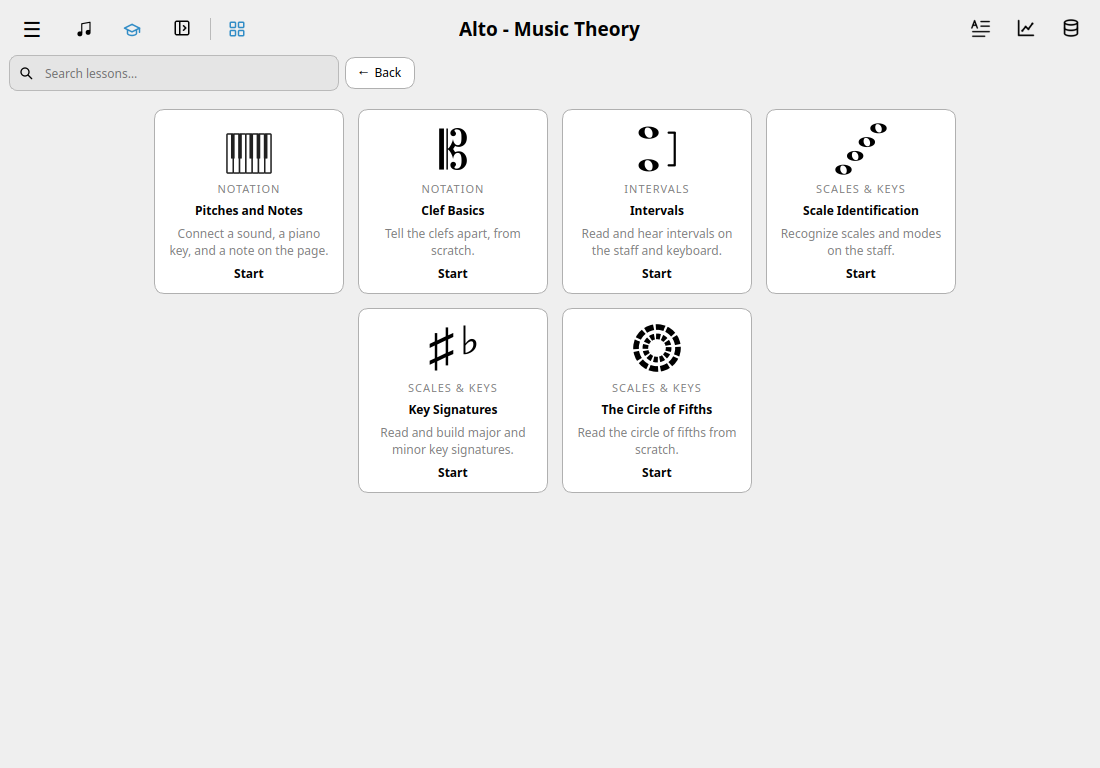
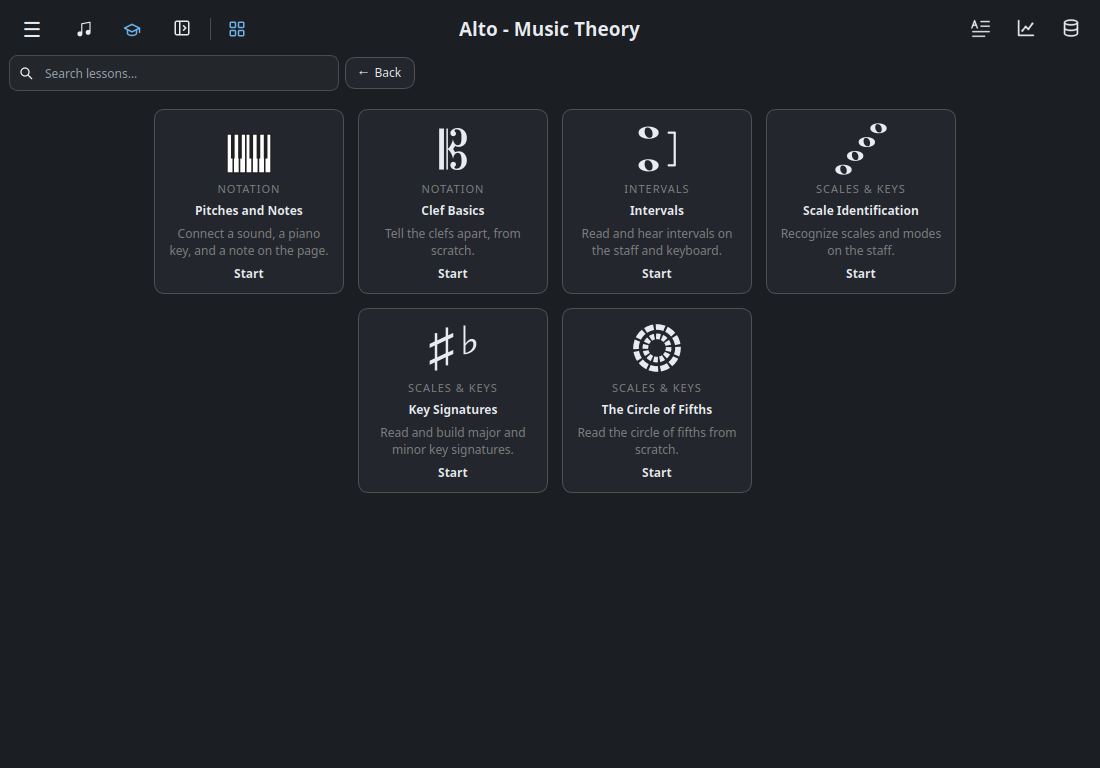
- Lesson search ·
MainWindow - Pitches and Notes tile ·
TileCard - Lesson catalog ·
HomePage
Opening Pitches and Notes puts the lesson outline on the left. On the right, LessonsPage supplies Leave lesson and Start over. Inside it, LessonView tracks the current step and StepView displays that step’s text, example, and question.
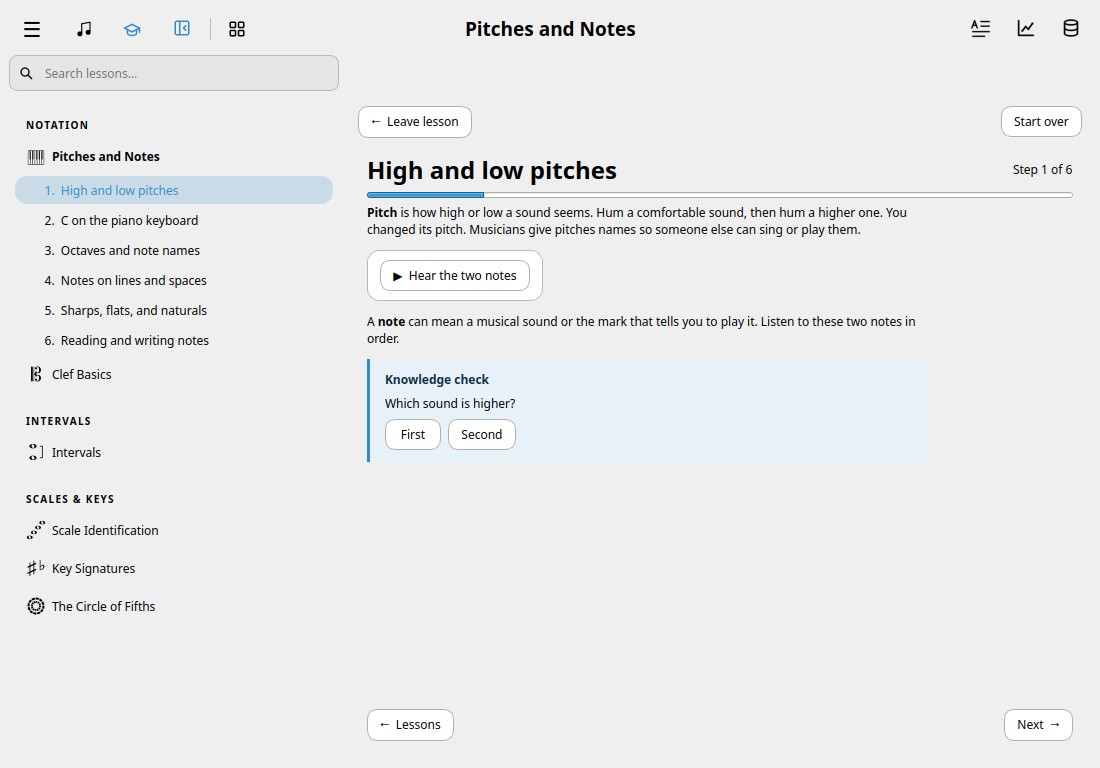
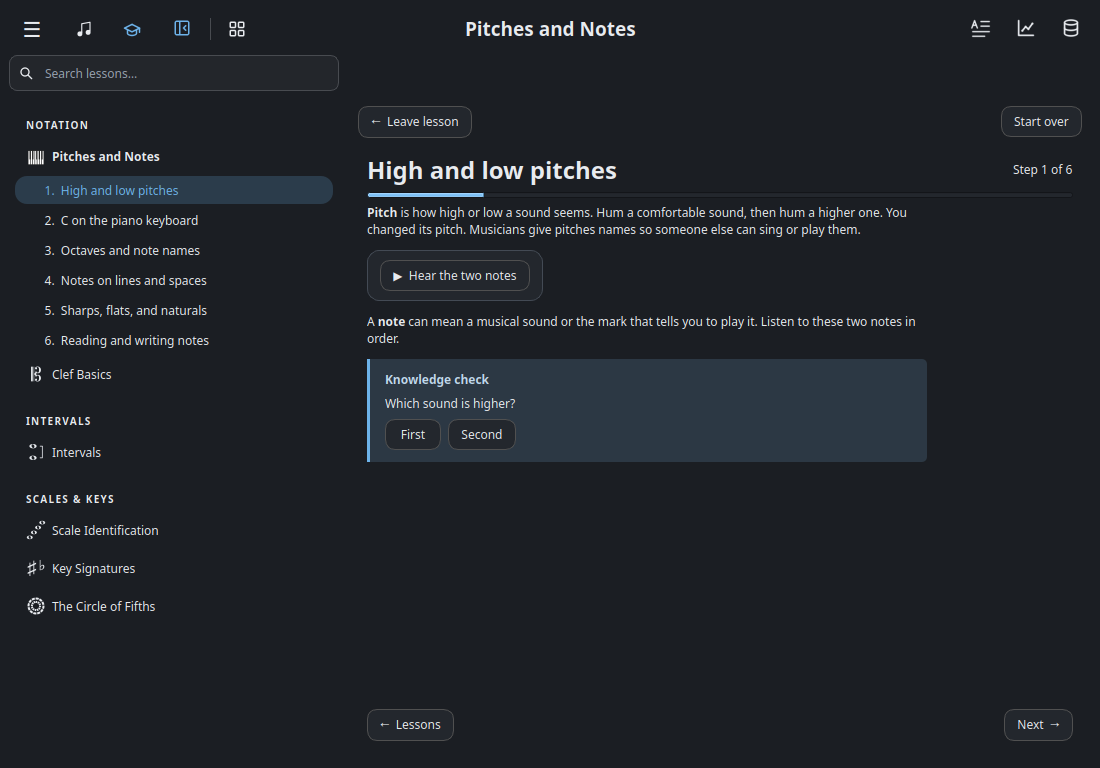
- Lesson outline ·
LessonNav - Leave lesson and Start over ·
LessonsPage - Step title and progress ·
LessonView - Example and knowledge check ·
StepView
Glossary
The glossary button opens a searchable term list. Selecting harmonic minor scale updates the definition, the example on the staff, and the links to related practice. The example uses the same staff class as Note Identification.
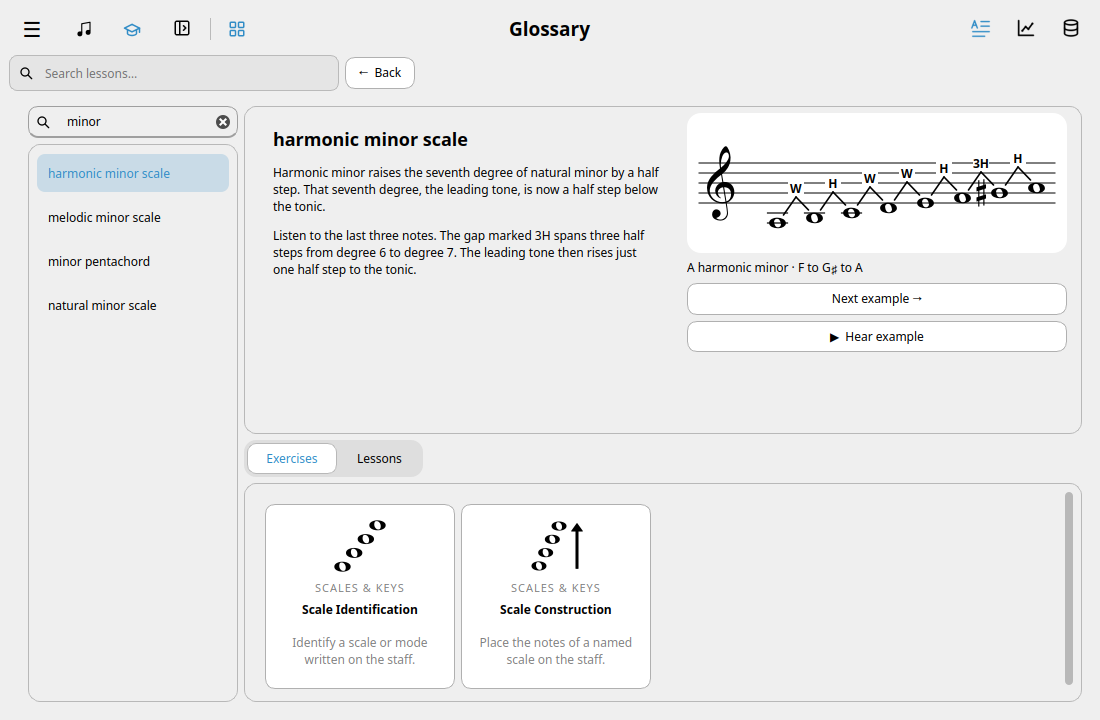
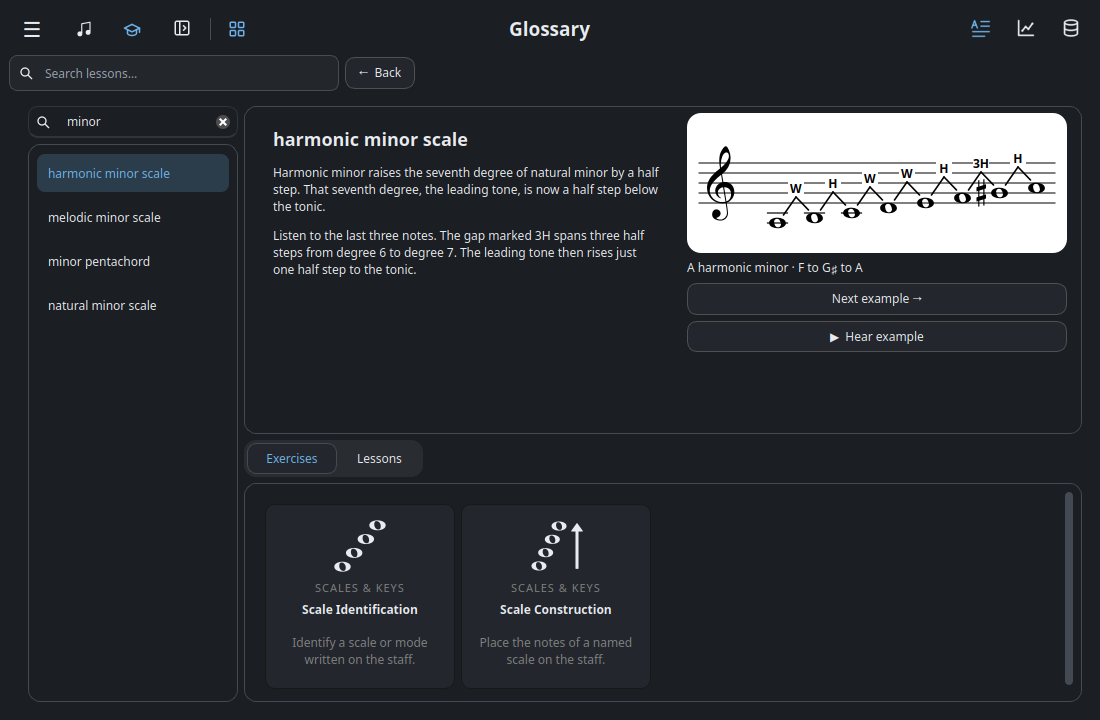
- Term search and list ·
GlossaryPage - Harmonic minor scale example ·
StaffWidget - Related exercise tiles ·
ExerciseCard
Statistics
The chart button opens StatsPage for the active learner. Changing the exercise or date filter updates both the totals and the graphs. Each chart paints its own data. For example, the stacked bars group questions by the period selected under Granularity, while the line beside them shows daily accuracy.
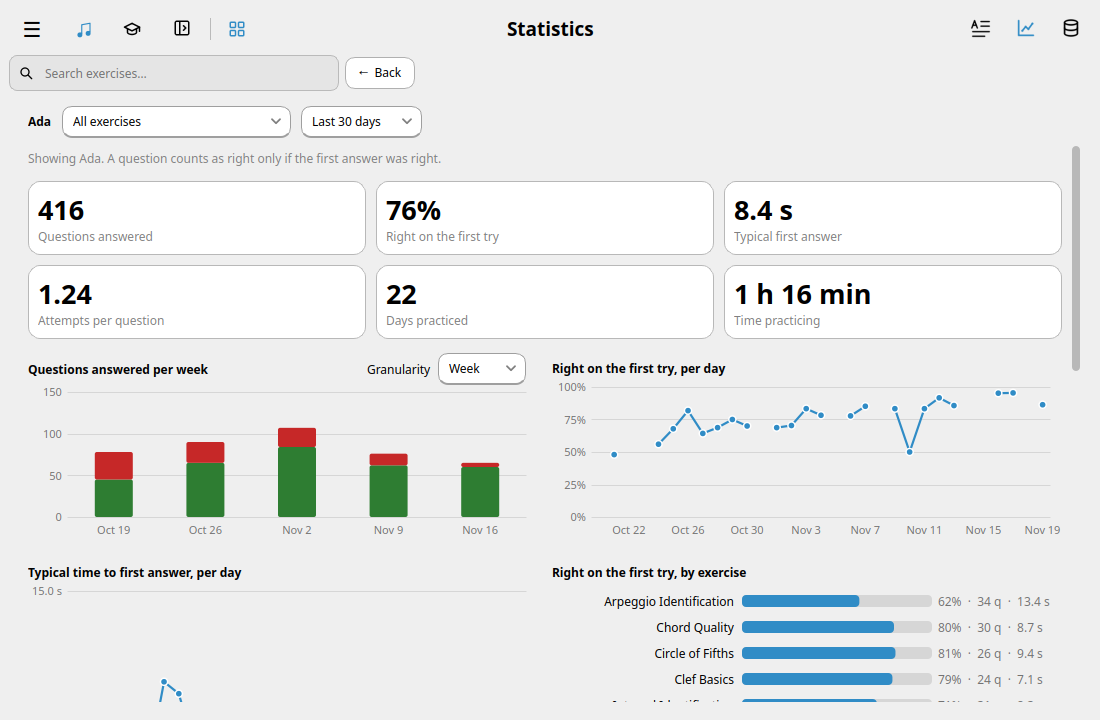
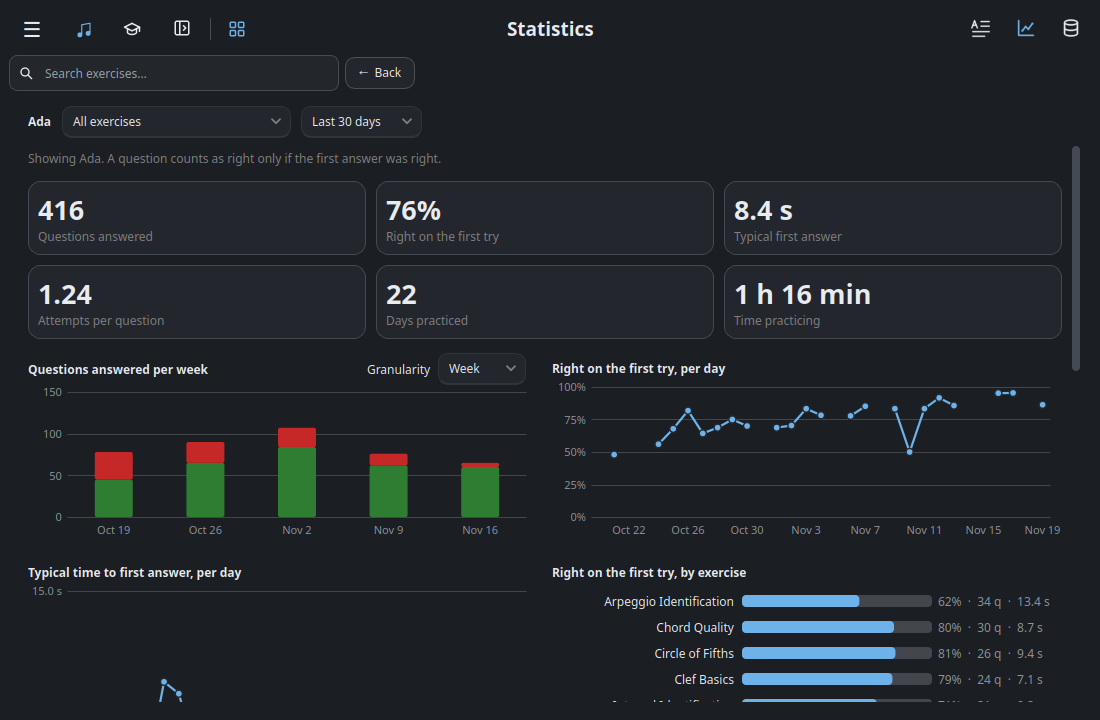
- Profile and filters ·
StatsPage - Summary tiles ·
Tile - Weekly question counts ·
StackedBarChart - Daily accuracy ·
LineChart - Accuracy by exercise ·
HBarChart
Database and answer details
The database button opens the history browser. DatabasePage handles the table choice and search field. To trace where a displayed cell gets its value, follow RowsModel, the model behind the table.
The Database chapter diagrams the relationships between profiles, submitted answers, and question summaries, and documents every stored column.
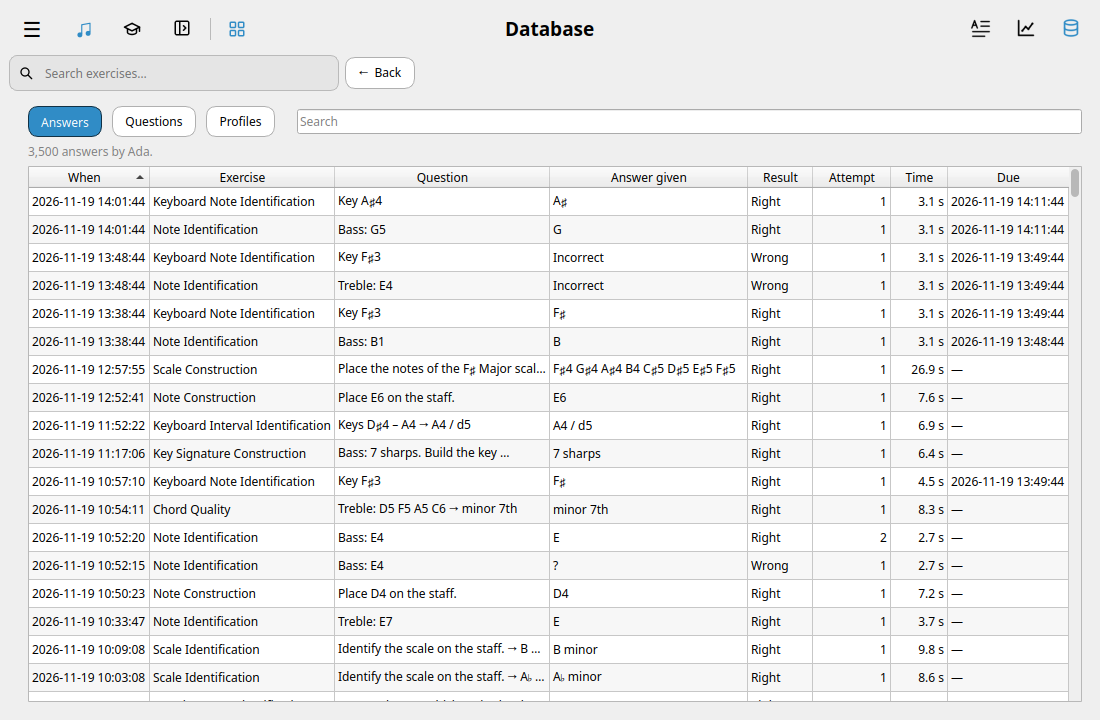
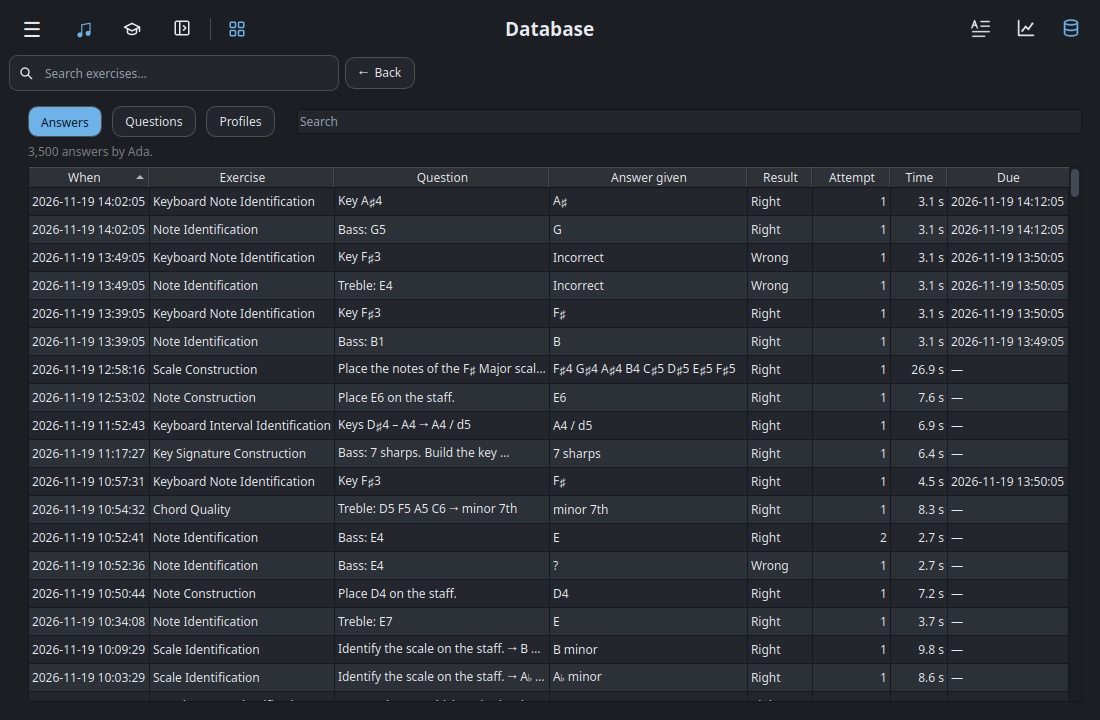
- Table selection and search ·
DatabasePage - Table data ·
RowsModel
Double-clicking an answer opens a separate QuestionPreview dialog. It recreates the question from the saved record. This chord example has a StaffWidget above the answer and timing details.
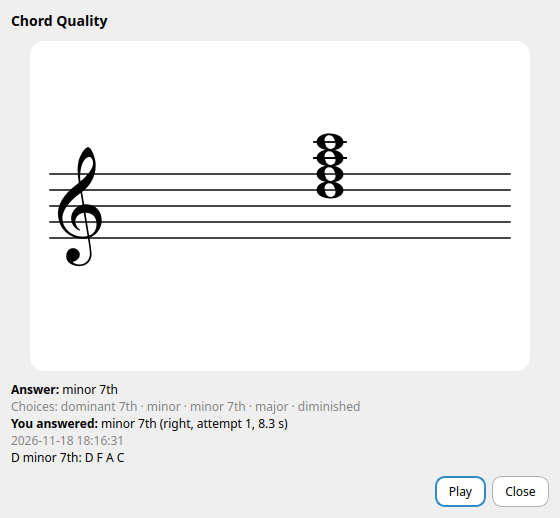
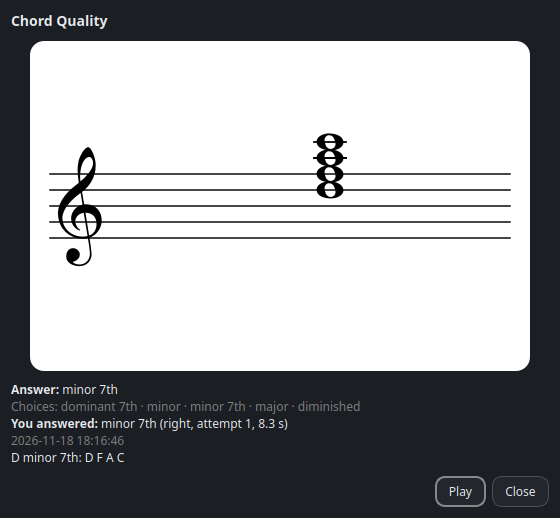
- Saved notation ·
StaffWidget - Answer and timing details ·
QuestionPreview
Application settings
Menu → Settings opens AppSettingsDialog. Under Appearance → Notation style, each font sample is a StyleCard. The dialog manages the selection, and each card contains its own staff preview.
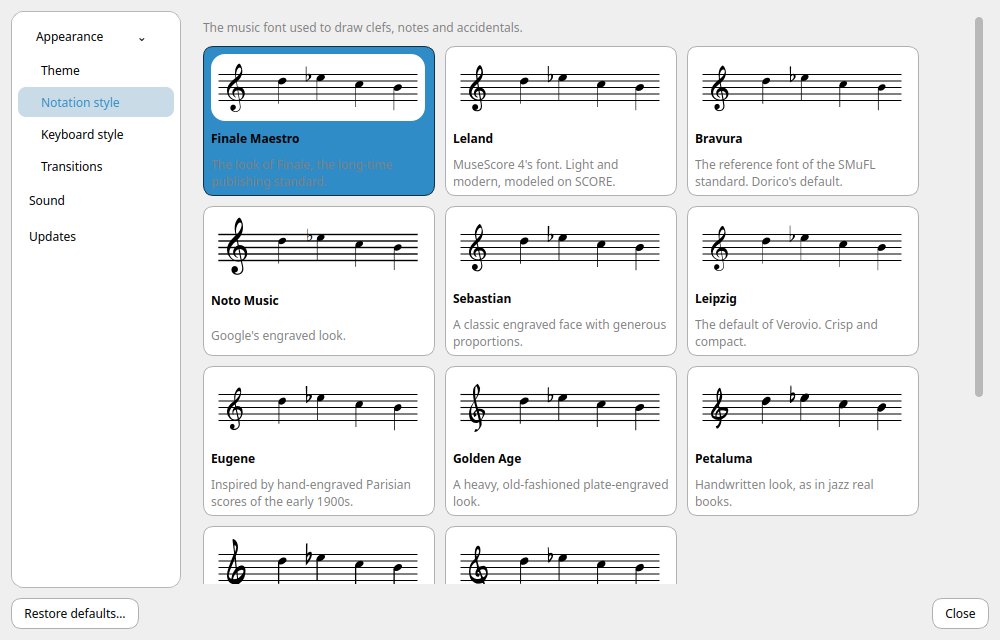
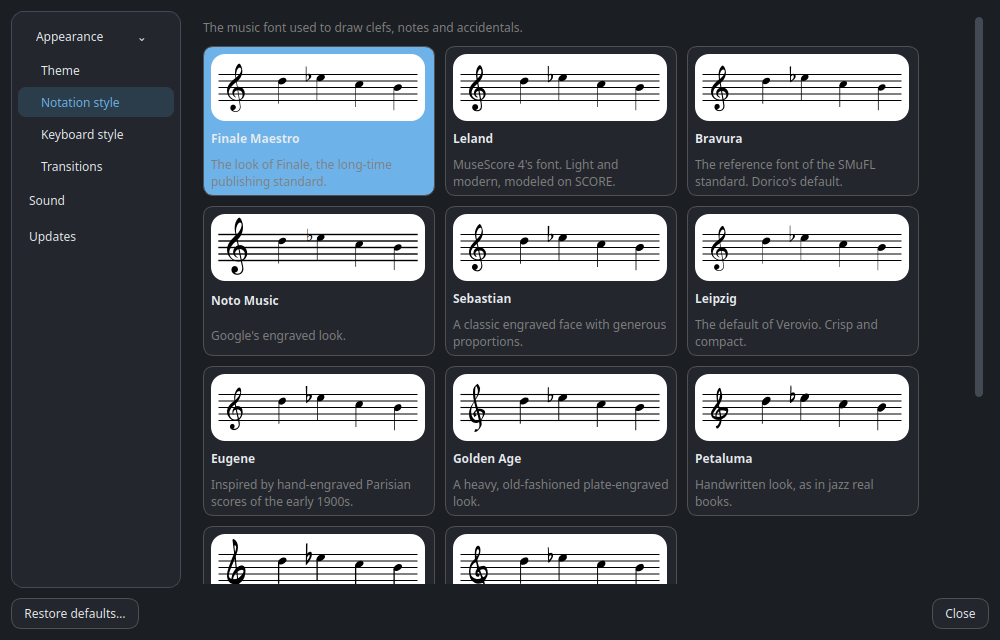
- Settings categories ·
AppSettingsDialog - Notation font cards ·
StyleCard