
Application launch
The first window you see depends on who has used Alto before. On a new installation, Alto asks for a name. On the next launch, it can open directly to the exercise catalog. To see where those paths diverge, open alto/__main__.py in your editor and follow one launch through main(). Module source on GitHub
A first run from the terminal
From the repository root, with Alto’s Python environment active, run these commands in a Linux shell. Keep the terminal open for the second launch later in the tutorial.
practice_dir=$(mktemp -d)
ALTO_HOME="$practice_dir" python -m alto
ALTO_HOME gives this run its own settings and practice history. Leave the Welcome to Alto dialog open for a moment. Python has already executed much of main(), but it hasn’t reached the line that creates the main window.
The entry point
Start reading at the bottom of alto/__main__.py. With python -m alto, Python finds the package’s __main__.py and executes it under the name __main__. That makes this condition true:
if __name__ == "__main__":
    raise SystemExit(main())
Python calls main() first. When it returns, SystemExit passes its result back to the operating system as the process exit code. Importing alto.__main__ from a test skips this block, so the test can decide when to call main().
The other launchers lead to the same function. The installed alto command gets its entry point from alto = "alto.__main__:main" in pyproject.toml. The packaged desktop application starts in packaging/launcher.py, which imports and calls main().
The Qt application
At the top of main(), two command-line options can finish the run early. python -m alto --version reports the installed version. --self-test checks the update prerequisites and returns 0 on success or 1 on failure. Both branches return before the first Qt application object is created.
For the interactive run, follow these lines:
app = QApplication(sys.argv)
app.setApplicationName("Alto")
app.setApplicationDisplayName("Alto - Music Theory" if alto_home() is None else "Alto (dev) - Music Theory")
apply_theme(saved_theme())
app is the Qt object shared by all of Alto’s windows. Applying the theme here lets even the first profile dialog use the saved colors. The next two calls set the desktop file name and load the window icon from alto/assets/icon.svg. At this point Qt is configured, but Alto still needs a profile.
The profile decision
db = Database(database_path())
profile = startup_profile(db)
if profile is None:
    return 0
For this run, database_path() resolves to data/alto.db inside the temporary directory. Database opens SQLite and creates the tables for a new database. startup_profile(db) looks up the available profiles. An empty table leads to the welcome dialog you left open. Database API · Profile selection code
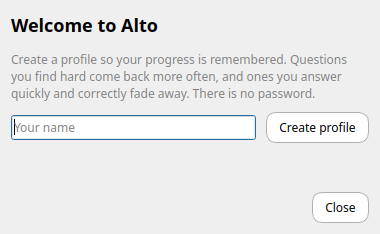
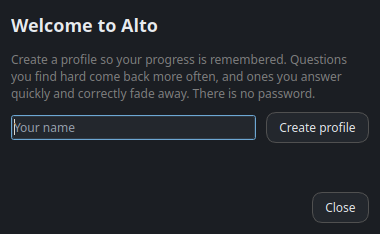
- Name field and Create profile button ·
ProfileDialog
Type Ada and select Create profile. ProfileDialog saves the name and accepts the dialog. startup_profile() remembers the selection and returns the profile to main(). Had you selected Close, it would have returned None and the return 0 above would have ended the run.
With existing profiles, Alto first tries the remembered profile, then uses the sole profile if there is only one. When several profiles exist and there is no remembered match, the same dialog class displays a list. Its modal exec() processes clicks while main() waits for a selection.
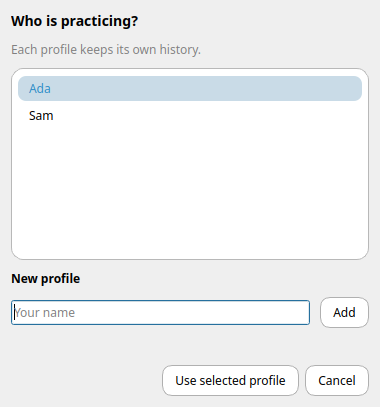
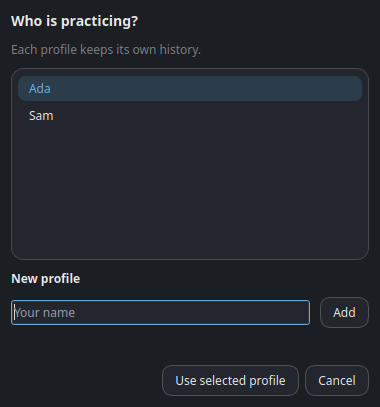
- Saved profile list ·
ProfileDialog
Construction of the main window
learner = Learner(db, profile=profile)
window = MainWindow(learner)
The first line pairs Ada’s profile with the open database. An exercise can now ask the learner for a question or record an answer against that profile. The second line passes the same learner into the window. To find the code behind the screen you now see, step into MainWindow.__init__() in alto/ui/main_window.py. It stores the learner, sets the starting size, restores saved window geometry if available, and calls _build(). Learner API · MainWindow API
Inside _build(), look for these lines:
self.stack = QStackedWidget()
self.home = HomePage(REGISTRY)  # start screen with a button for every exercise
self.home.exercise_chosen.connect(self.open_exercise)
self.home.lesson_chosen.connect(self.open_lessons)
self.home.resume_button.clicked.connect(self._back_from_topbar)
self.stack.addWidget(self.home)
The stack holds pages that share the same area of the window. Its first page is the catalog. In the screenshot, select the Note Identification tile to inspect ExerciseCard, or select the catalog region to inspect HomePage, which arranges those cards. The toolbar and search field belong to the surrounding MainWindow.
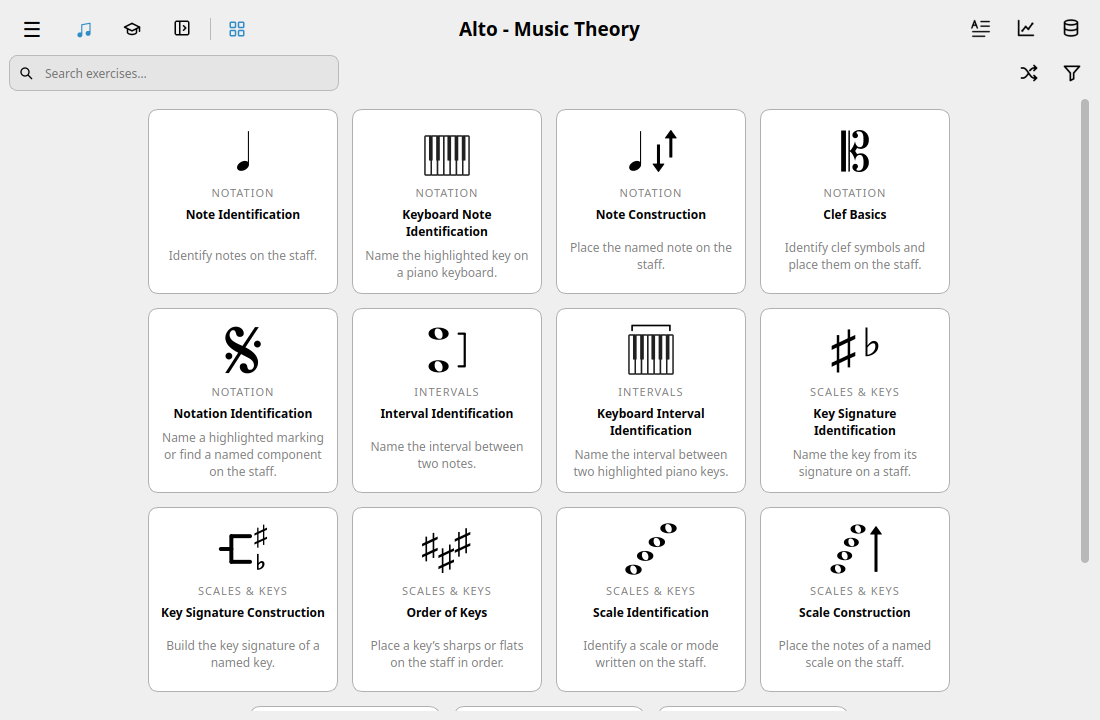
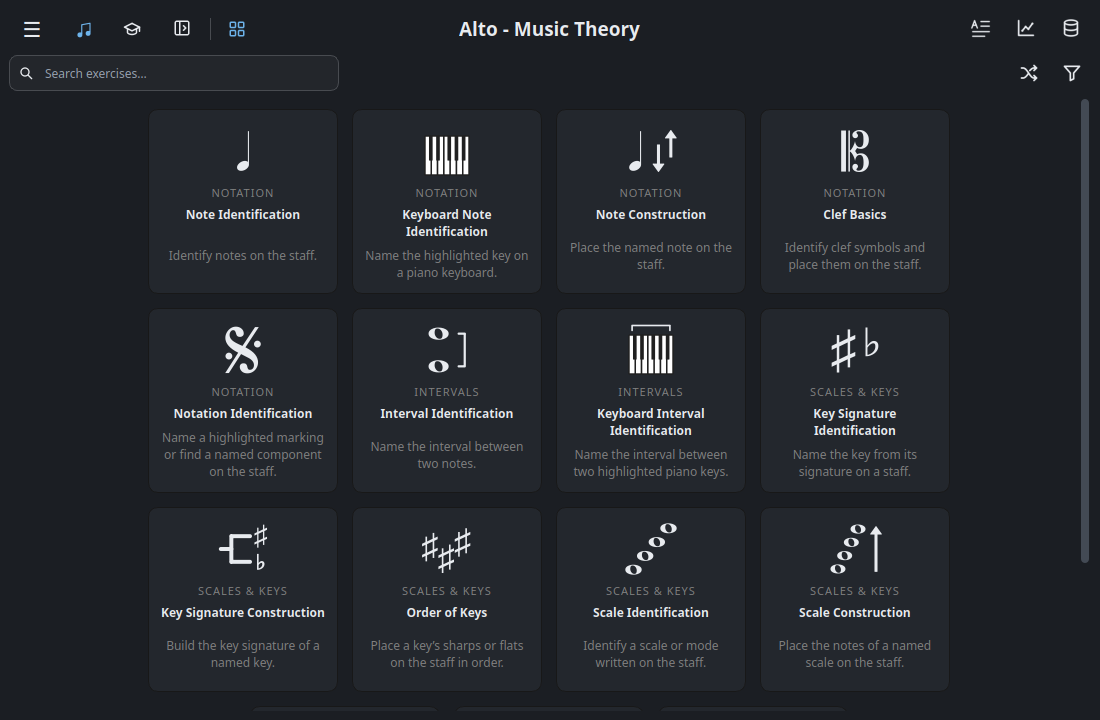
- Exercise and lesson switch ·
SegmentedControl - Search field ·
MainWindow - Note Identification tile ·
ExerciseCard - Exercise catalog ·
HomePage
The event loop and the first click
Back in __main__.py, the last four statements of main() are:
app.learner = learner
app.main_window = window
window.show()
return app.exec()
The first two assignments keep references to the active learner and window on the application. window.show() makes the constructed window visible. app.exec() runs Qt’s main event loop, which delivers input and paint events. main() stays at that call while you use Alto.
In the running app, click Note Identification. The catalog emits exercise_chosen with the exercise class. The connection you saw in _build() sends it to MainWindow.open_exercise(), which opens an ExerciseView in the stack. The toolbar stays in place as the catalog gives way to the staff and answer buttons. ExerciseView API
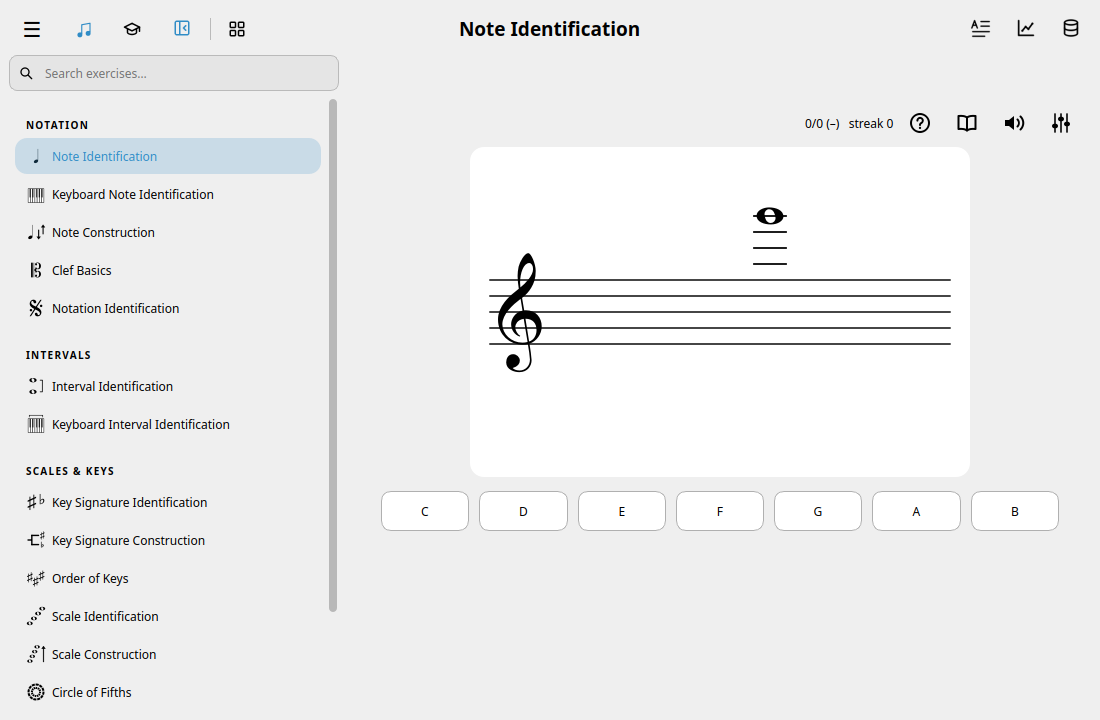
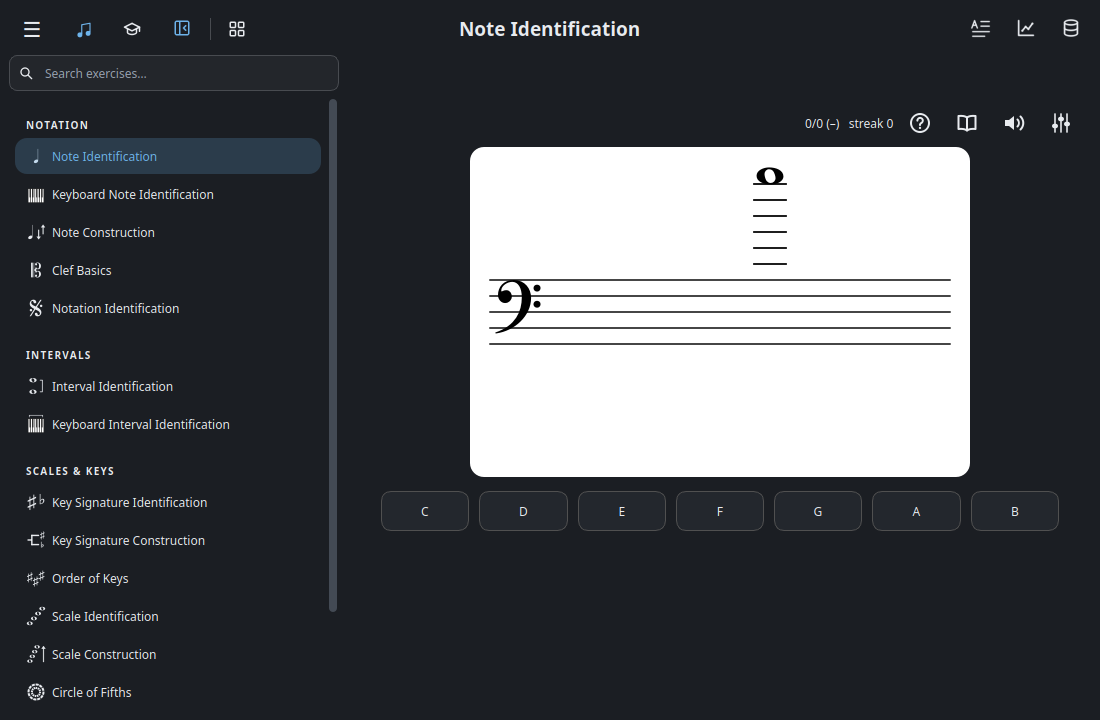
- Exercise list ·
MainWindow - Notated question ·
StaffWidget - Answer buttons ·
ExerciseView
Close the window. Qt’s event loop returns, and its exit code travels back through main() to the terminal. In the same shell, run ALTO_HOME="$practice_dir" python -m alto again. This time you should go straight to the catalog. To watch the difference in a debugger, set a breakpoint on profile = startup_profile(db) and step over it. On the second launch, the call returns Ada’s profile without waiting for a dialog.