
Getting started
What you need
- Python 3.11 or newer.
- A desktop operating system that runs Qt 6: Linux, macOS or Windows.
- Alto installs PySide6 (6.8 or newer) and numpy for you.
The default notation style, Finale Maestro, uses a font that comes with Alto, so nothing more needs to be installed. Only the “Noto Music” style reads a font from your system; most Linux distributions include it in their Noto font packages. You can change the notation style in Settings.
Download and install
Each release on the Releases page has a Linux download and a Windows installer. They carry their own Python and Qt, so nothing else needs to be installed.
Linux. Download alto-<version>-linux-x86_64.tar.gz, unpack it, and in the folder it makes run:
sh install.sh install
This copies Alto to ~/.local/opt/alto, links it as ~/.local/bin/alto, and adds Alto to your application menu, for you only, with no
root. To update, unpack the newer download and run the same command. sh install.sh uninstall removes Alto and keeps your practice
history and settings; add --purge to delete those too (use Export backup… first if you might want them back).
Windows. Download alto-<version>-windows-x64-setup.exe and run it. It installs for you only, with no administrator prompt, adds
Alto to the Start menu, and lists it in Settings → Apps. Windows may say it protects your PC because the publisher is unknown: the
installer is not signed yet. Choose More info, then Run anyway. To update, run the newer installer. To uninstall, use
Settings → Apps; the uninstaller asks whether to also remove your practice history and settings.
Check your download
Each release has a file called SHA256SUMS next to the downloads. It lists the SHA-256 fingerprint of every file in the release, so you
can check that yours arrived complete and unchanged. Download it from the same release page, then:
Linux. In the folder that has both files, run:
sha256sum --check --ignore-missing SHA256SUMS
It prints OK after the name of each file it finds.
Windows. In PowerShell, in the folder that has the installer, run:
Get-FileHash .\alto-<version>-windows-x64-setup.exe -Algorithm SHA256
The value it prints should be the same as the one on that file’s line in SHA256SUMS.
The list is signed as well (SHA256SUMS.sig). Alto checks that signature itself whenever it updates a packaged copy; see
Updating Alto.
Updating Alto
Whichever way you installed Alto, you can update from inside it: open the menu (☰) and choose Check for updates…. By default Alto asks GitHub for the newest release and compares it with the version you have (Settings → Updates shows it). If yours is the newest, it says so. If not, it asks whether to install the update, shows its progress, and tells you that Alto will restart when you press OK.
- A copy installed with the script installs the new release itself.
- A packaged copy (the Linux tarball installed with
install.sh, or the Windows installer) replaces itself. It downloads the new release, checks it (see below), tells you that Alto will close, install it and open again when you press OK, and does so. A Linux folder that you only unpacked and ran from is not an install, so it is offered the page where the release can be downloaded, as is a build that has no way to check a download. - A copy you run from a clone is updated with
git pull.
How an update is checked. Every release has a file of checksums (SHA256SUMS) and a signature of it
(SHA256SUMS.sig), made with a private key that only the release workflow has. Alto carries the matching public key. It installs a
download only if the signature on the list is valid, the signed list names that file, and the file’s SHA-256 hash is the one
listed. If any of that fails, it says why and installs nothing. If an update fails while installing on Linux, the copy you had is kept.
To get changes as soon as they are merged, before they are released, select Follow the main branch in Settings → Updates. The check then compares commits on the main branch instead of releases. This works for a copy installed with the script, and may be less stable than a release; a packaged copy always follows releases.
An update from the menu does not refresh the application-menu entry or icon; sh scripts/alto-install.sh update does that too.
Install and run
git clone https://github.com/altosaurus/alto.git
cd alto
python -m venv .venv
.venv/bin/pip install -e .
.venv/bin/python -m alto
On Windows the virtual environment’s programs are in .venv\Scripts\ instead of .venv/bin/. After installing, the
command alto also starts the app from inside the environment.
Install as a program (Linux)
To have Alto in your application menu, separate from a clone you are working in, use the install script. It needs uv. It installs the newest version from GitHub into its own environment.
sh scripts/alto-install.sh install     # install, and add Alto to the application menu
sh scripts/alto-install.sh update      # fetch the newest version
sh scripts/alto-install.sh uninstall   # remove the program, the menu entry and the icon
Uninstalling keeps your practice history and settings (see Your data). Add --purge to
delete those too; use Export backup… first if you might want them back.
First launch
The first time you open Alto it asks you to create a profile.
Type a name and press Create profile. There is no password, and the name is only a label that keeps your history separate from anyone else who uses the same computer. Next time Alto opens straight into the profile you used last.
To switch to someone else, or add another profile, open the menu (☰) and choose Profile.
Your first session
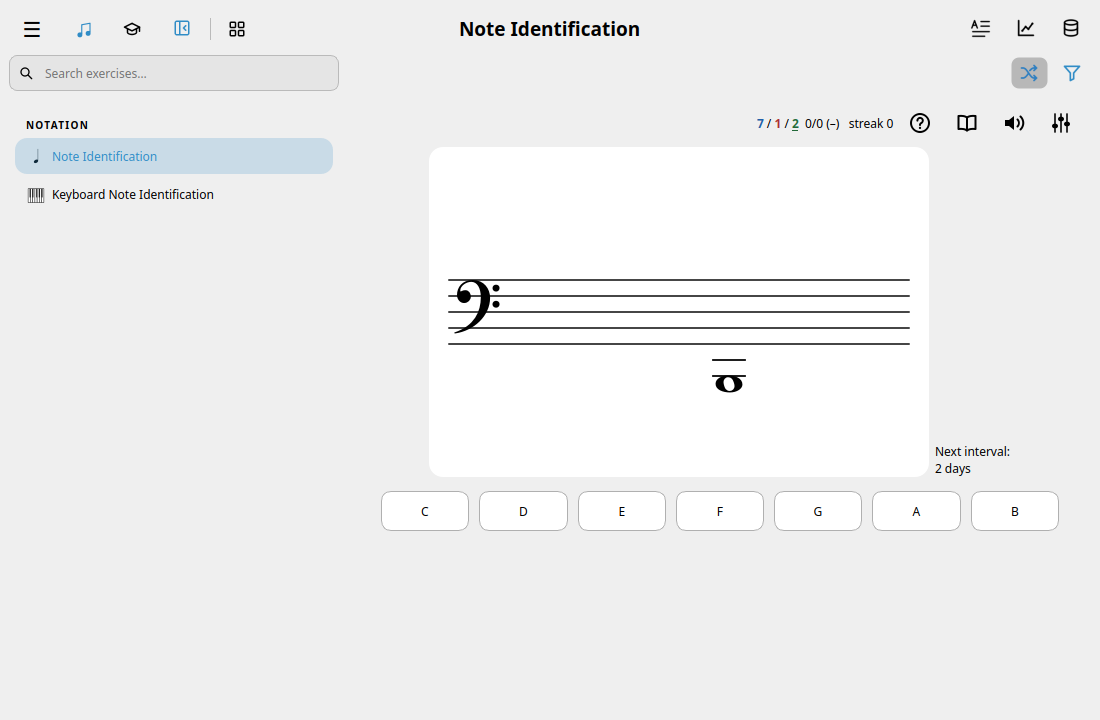
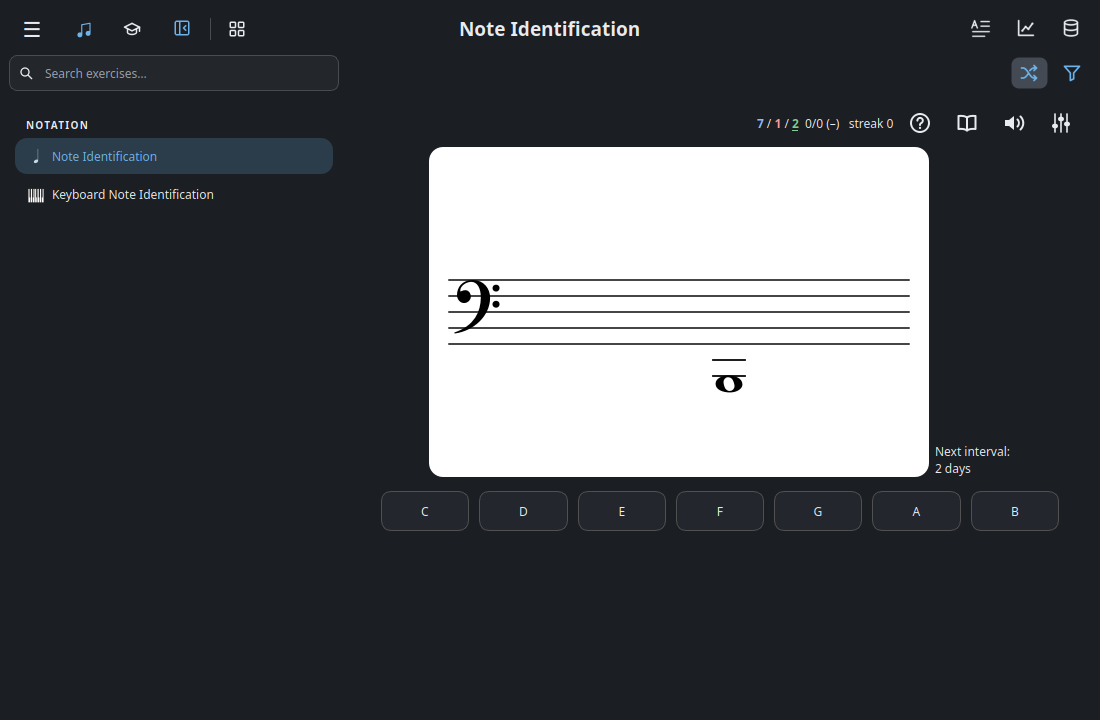
- Click an exercise on the home screen.
- Answer by clicking a button, or by pressing the number key shown in its tooltip.
- A correct answer turns green and plays the note. A wrong one turns red. Try again until you get it.
- The counter at the top shows how many you have right and your current streak.
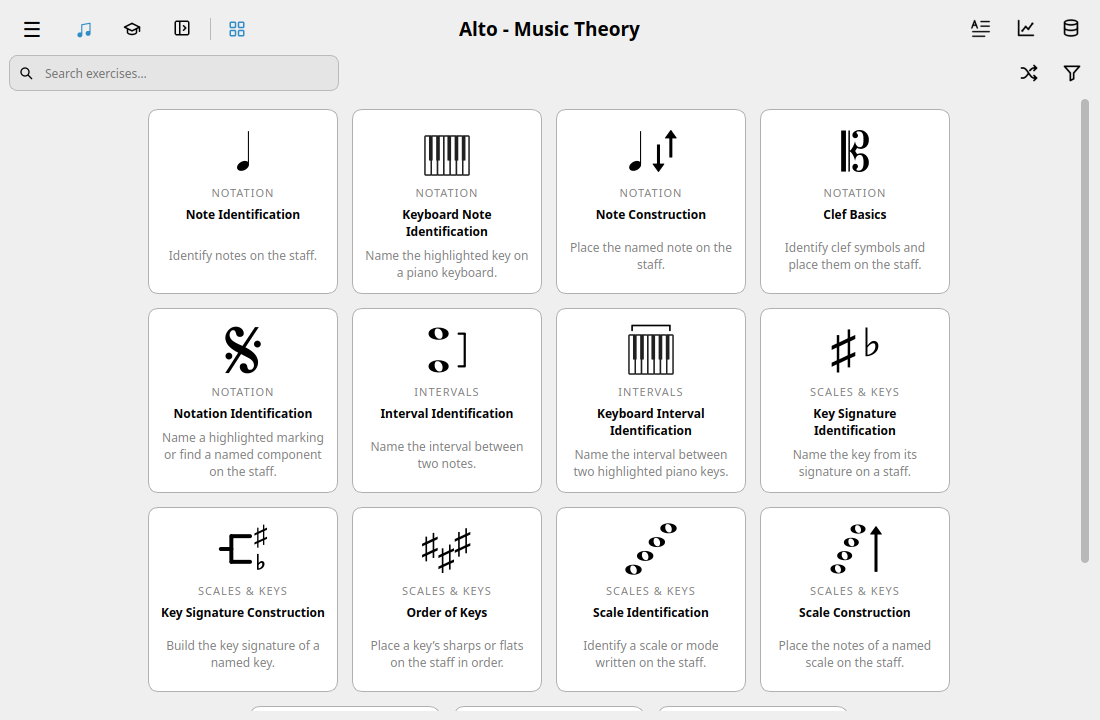
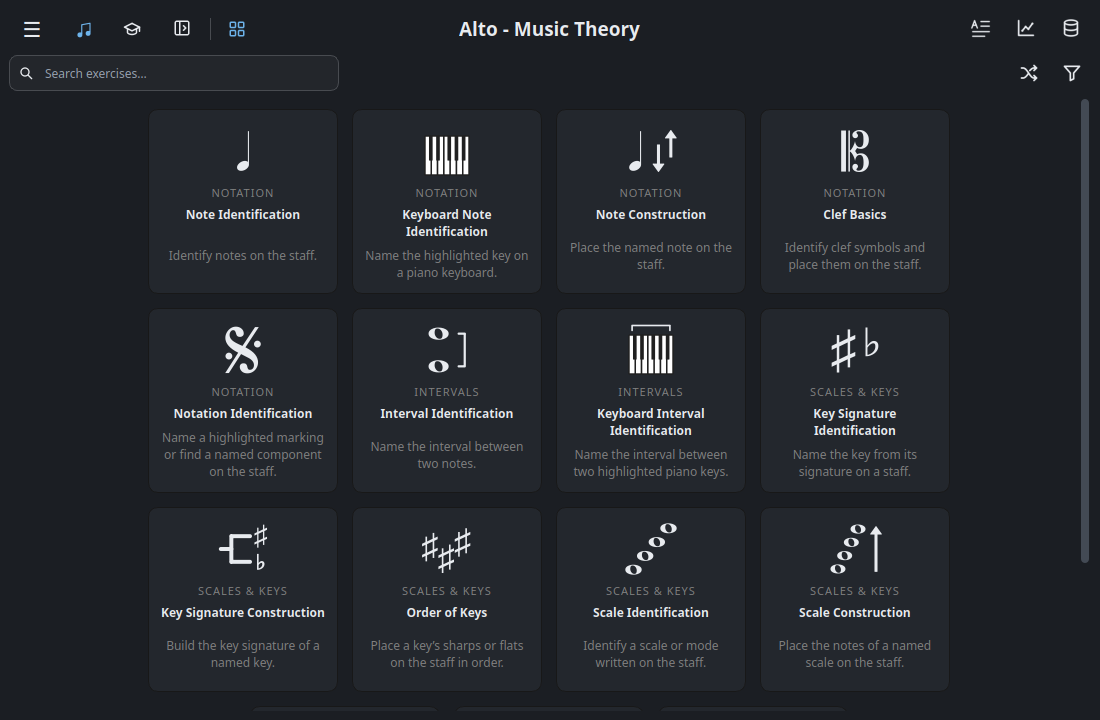
The Exercises / Lessons control at the top left selects what to browse. Alto starts with tiles. Navigation Pane opens the matching list on the left; before you start an activity, the main panel says “Select an exercise to begin.” or “Select a lesson to begin.” Use the separate Tiles grid button to return to tiles without losing your place.
The icon-only Exercises / Lessons pair sits at the top left, followed by an open/close navigation-pane button, a divider, and a separate grid button for returning to tiles. Hover over an icon to see its name. The search field below filters the selected section by name, description or category, and follows the sidebar’s width. On the tile grid or during an exercise, click the funnel icon at the right end of the search row to open the filter sidebar. Click it again to collapse the sidebar and keep your filters. The sidebar opens on the right with every category expanded. Check or clear a category to include or hide its activities, or check individual exercises or lessons. The tiles and navigation list show the same matches. A dash means some activities in a category are checked. All categories selects or clears the whole list.
Turn on Shuffle exercises, just left of the funnel, to practice the exercises in your filtered list. After each right or wrong answer, Alto prefers an exercise from another category. If the other available exercises are in the current category, it picks one of those. For example, selecting only Note Identification and Keyboard Note Identification makes them alternate when both have questions available. Your Next Question setting controls when the switch happens. With Wait, click Next after reviewing your answer. You can change the filters while answering a question. Shuffle uses the updated list for the next question and returns to the tiles if the list is empty. Click the highlighted shuffle icon again to turn it off.
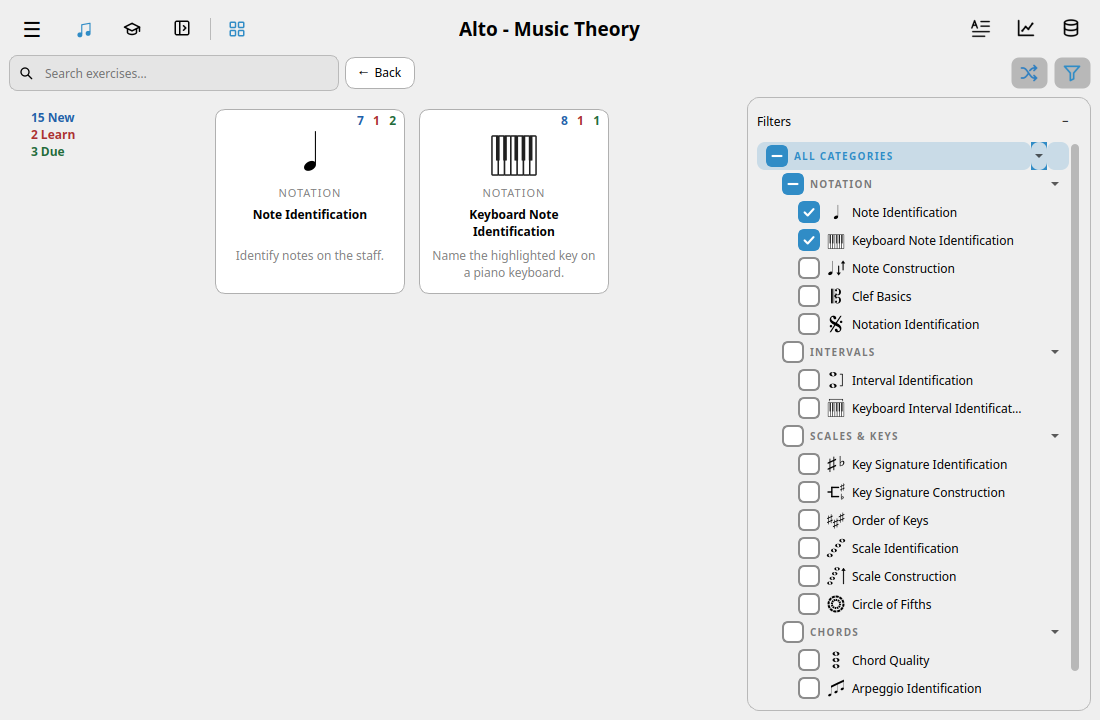
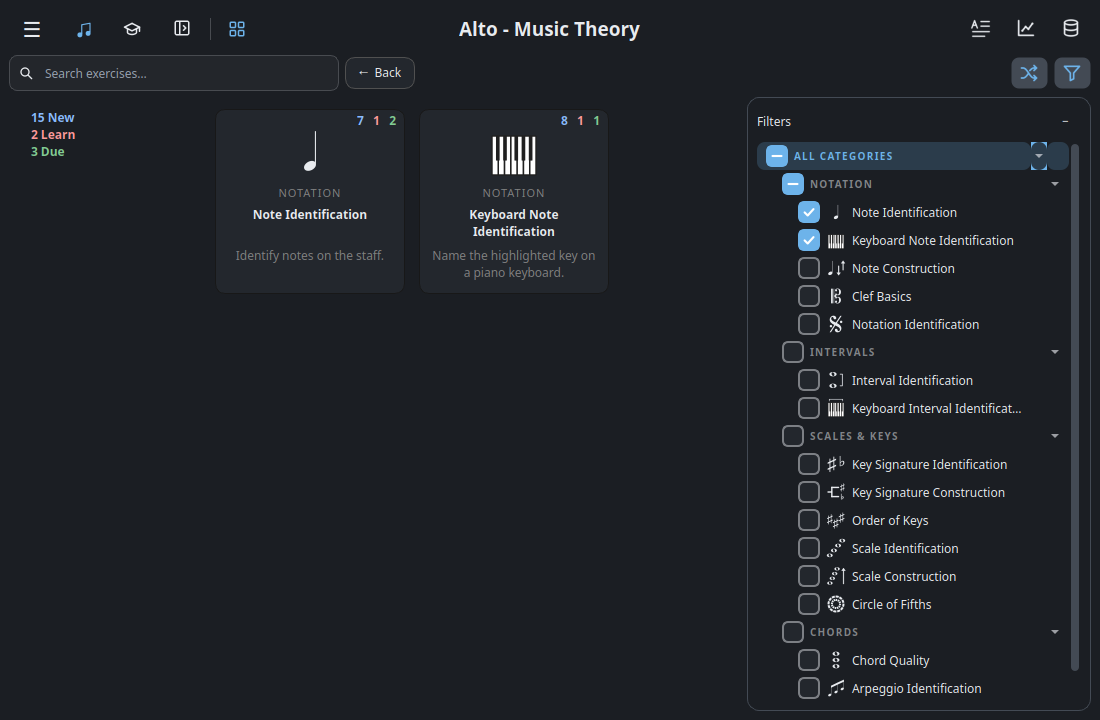
During an exercise or lesson, Exercises / Lessons switches the list while keeping your activity on screen. Selecting an item starts or resumes it. The top-left pane button hides and shows the list without leaving your activity. Statistics and Browse database are at the top right. The sliders button opens the exercise’s own settings, and ? explains it.
Glossary
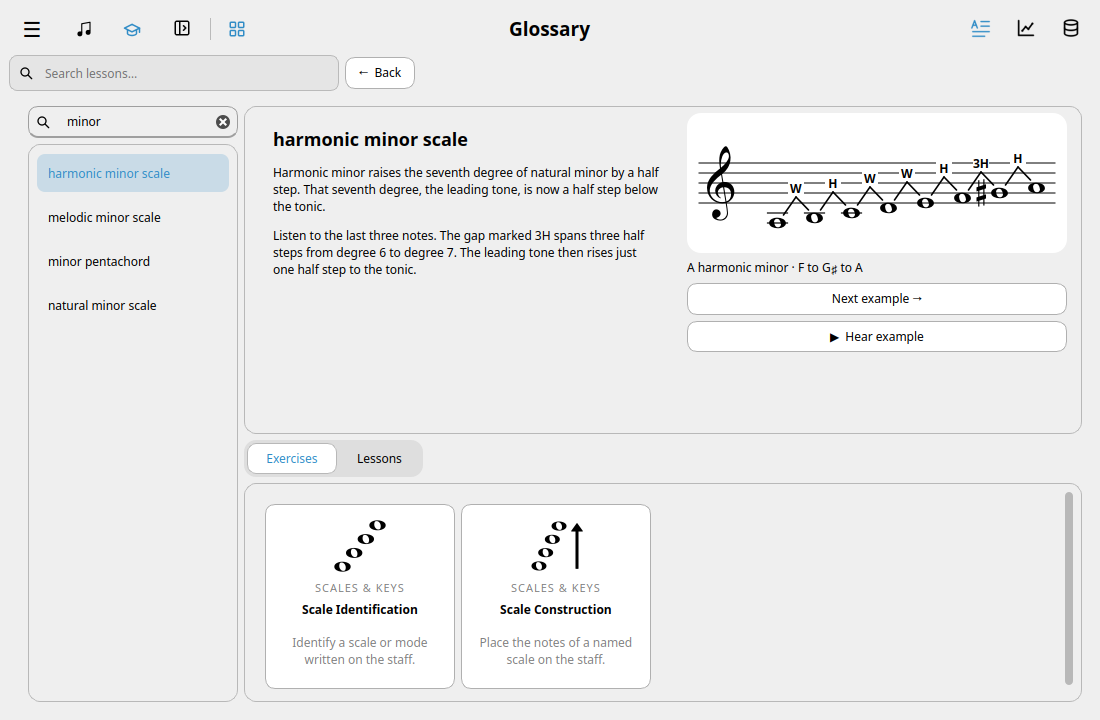
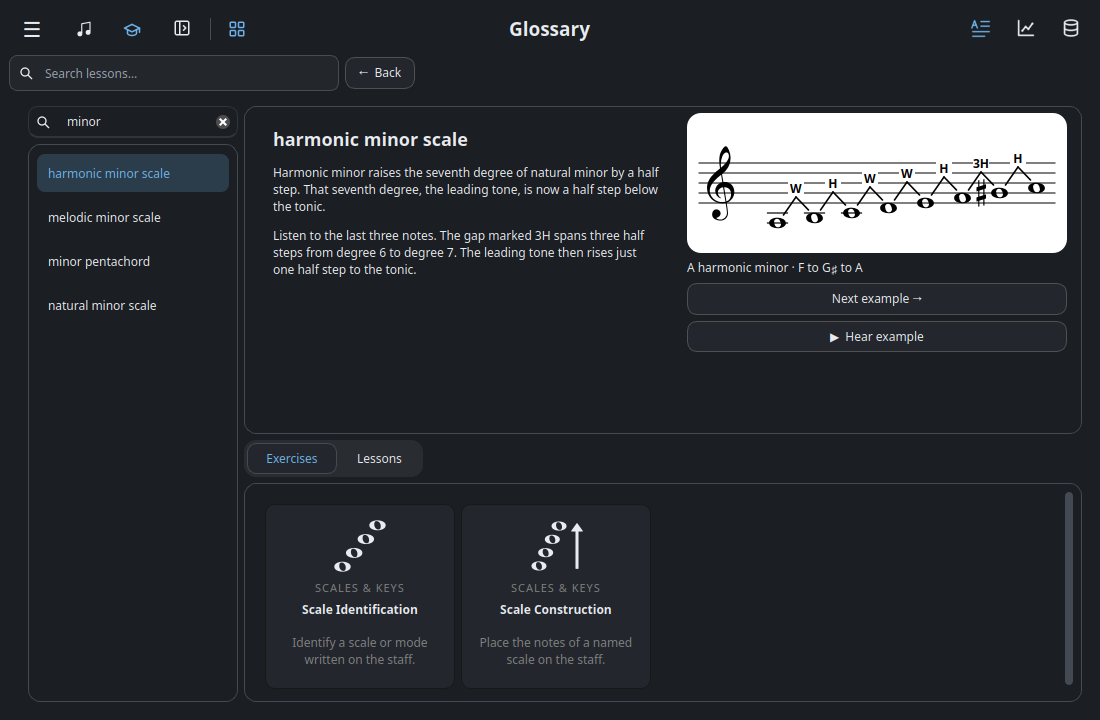
Open Glossary in the top toolbar to look up a term. Search for minor, for example, and select harmonic minor scale. You can hear the scale, try another example, or open a related exercise from the same page.
Running the tests
.venv/bin/pip install -e ".[dev]"
.venv/bin/pytest