Settings
There are two kinds of settings. App settings apply everywhere. Exercise settings belong to one exercise.
App settings
Open them from the menu (☰) with Settings… or Ctrl+Alt+S. The dialog does not block the window: you can keep it open and use the exercises, and opening it again brings the same one forward. A new theme is applied to the window when you close the settings. Categories are listed on the left, and the selected one’s settings appear on the right.
Appearance
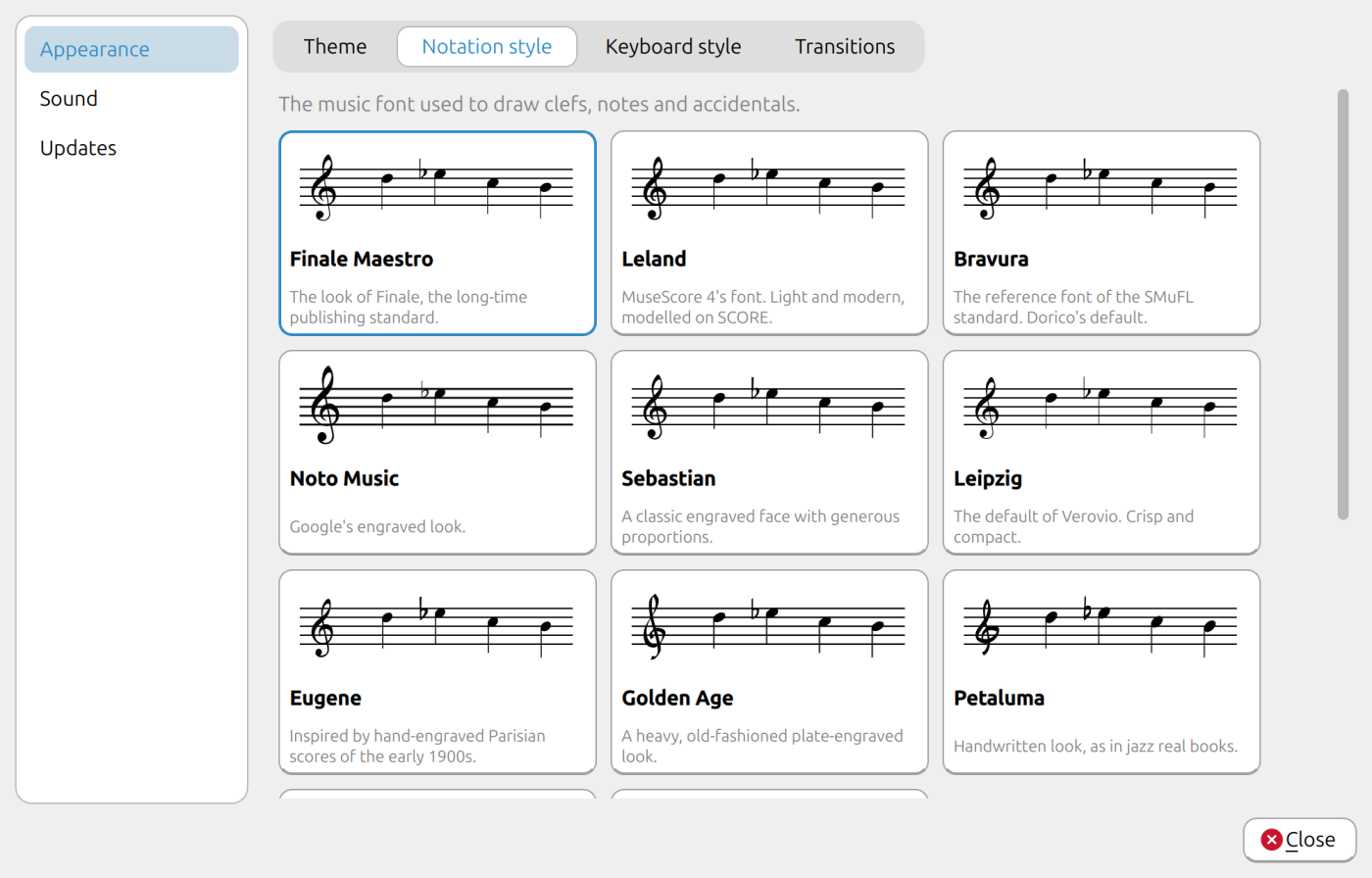
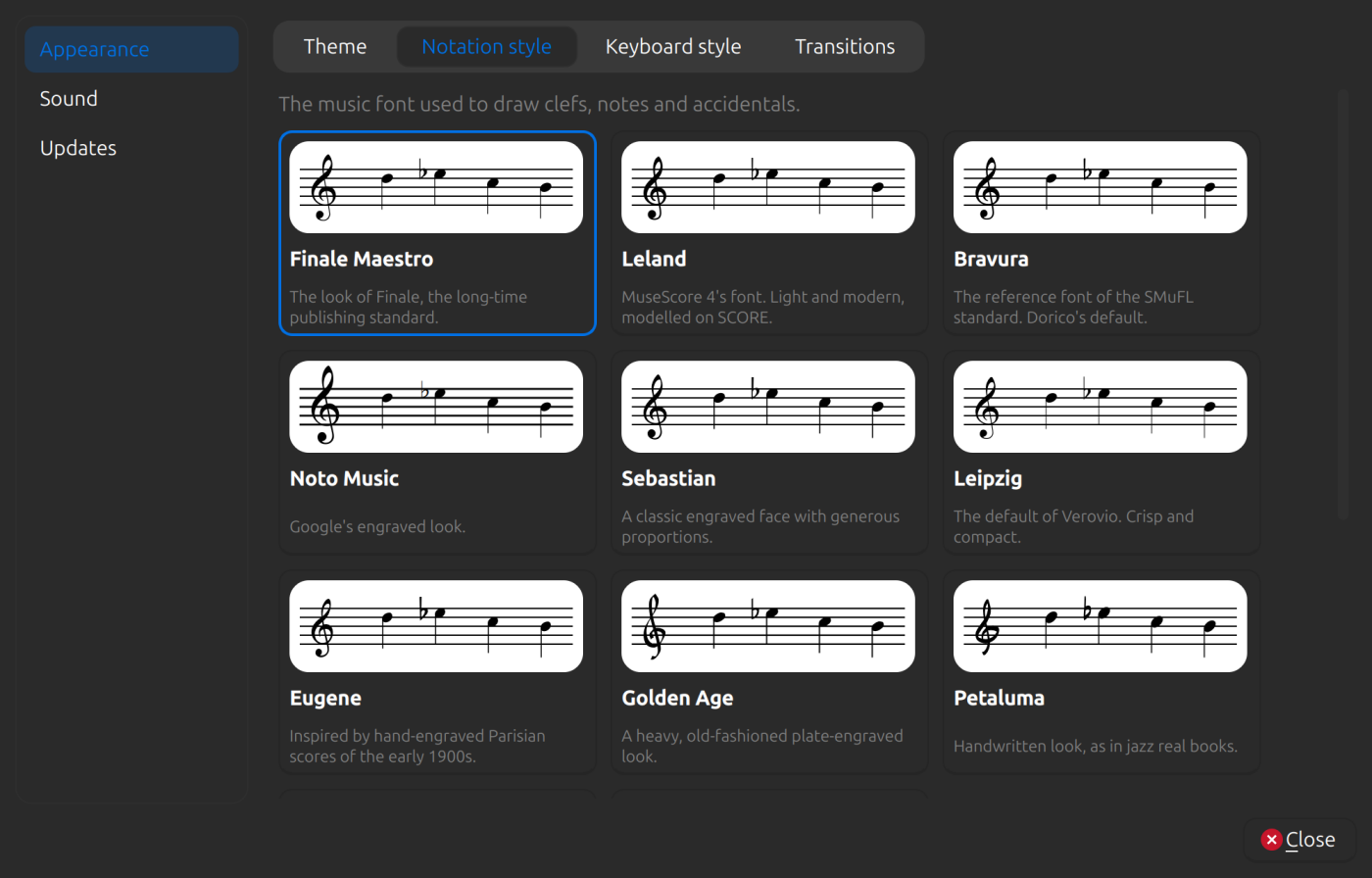
The Appearance page has four sections, Theme, Notation style, Keyboard style and Transitions, which you switch between with the pill-shaped control at the top.
Theme. The themes are in a list on the left. The right side is the theme’s card: its name, three pictures of the window one above another. Beside the Light and Dark pictures are squares of that version’s colours, and the window, accent and ink colours written out as hexadecimal codes. The pictures are Light, Dark and System. The System picture is cut through on a slant, light on one side and dark on the other, because that version is light when your operating system is set to light and dark when it is set to dark, and changes with it. Choosing a theme in the list uses it at once, in whichever of Light, Dark and System you chose last, so you can go down the list and see each theme in the version you prefer. Clicking a picture changes the version. The picture in use is outlined, and its theme is bold in the list. The first theme, Default, is the desktop’s own colours. Then there is Studio, with cool greys and a clear blue, and twenty-four more: Parchment, Slate Blue, Sage, Harbour, Lavender Hush, Rosewater, Marigold, Pine, Indigo Ink, Graphite, Terracotta, Mint, Sky, Plum, Sand, Teal, Copper, Charcoal and Gold, Cherry, Moss, Arctic, Dusk, Lime Shock and Ember.
Your own themes. The top of the theme list is My themes, with a row + New theme…. Choosing it opens an editor in place of the card. Save (filled in the accent colour), Cancel and, for a theme already saved, Delete theme are at the top right of the editor, where they stay in view while the colours below them scroll. Give the theme a name, then choose a colour for each part of its Light version and its Dark version: the window, panels, text, quiet text, outlines, accent and the track behind a switch. Click a colour to open the colour picker: the pointer becomes a hand over a colour, a ring appears round it, and the code beside it turns bold and dark. A small picture of each version follows the colours as you change them. A new theme starts as a copy of Studio, and choosing another theme in the Start from list takes that theme’s colours at once, for both versions. Save keeps the theme and uses it, in the version you last chose. Your themes are kept with your other settings, so they are there next time, and they are part of a backup. A theme of your own appears in the list with the same three pictures as any other, and its card has a Change colours… button for the editor, from which you can also Delete theme after it asks.
Notation style. The music font used to draw clefs, notes and accidentals. Each choice shows a preview. Your choice applies to every staff in the app, including the small pictures in the settings panels. The default is Finale Maestro.
| Style | Character |
|---|---|
| Finale Maestro | The look of Finale. |
| Leland | MuseScore 4’s font. Light and modern, modelled on SCORE. |
| Bravura | The reference font of the SMuFL standard, which Dorico uses by default. |
| Noto Music | Google’s engraved look. |
| Sebastian | A classic engraved face with generous proportions. |
| Leipzig | The default of Verovio. Crisp and compact. |
| Eugene | Inspired by hand-engraved Parisian scores of the early 1900s. |
| Golden Age | A heavy, old-fashioned plate-engraved look. |
| Petaluma | A handwritten look, as in jazz real books. |
| MuseJazz | A brush-pen hand, like MuseScore’s jazz template. |
| Finale Broadway | A bold copyist’s hand, as in Broadway scores. |
Under the styles, Baritone clef chooses how that clef is written. It is the same staff and the same notes either way (the bottom line is B2 and the top line is C4):
- F clef, on the middle line is the default. It looks like a bass clef moved up, with its dots either side of the middle line.
- C clef, on the top line looks like an alto clef moved up, with its centre on the top line.
The choice applies to every baritone staff in the app and its pictures, in whichever music font you have chosen.
Keyboard style. How the piano keyboard looks in the keyboard exercise and in the range picker. Each choice is a card with a small picture of the keys. Your choice applies to every keyboard in the app. The default is Classic, the standard Alto look.
| Style | Character |
|---|---|
| Classic | White keys in a dark case. |
| Modern piano | A current upright or grand, with red felt under the fallboard. |
| Antique ivory | Naturals aged to a warm yellow, in a rosewood case. |
| Harpsichord, Italian | Boxwood naturals and dark sharps in a cypress case. |
| Harpsichord, French | Reversed colours: ebony naturals with bone-topped sharps. |
| Baroque pipe organ | Bone and ebony keys in an oak case, under a row of stop knobs. |
| Tonewheel organ | Plastic keys in a walnut case, with the lowest octave reversed. |
| Flat and minimal | No case and no gradients. Reads well at small sizes. |
| Engraving | Ink on paper, like a plate in an old method book. |
| Colour by note | One hue per semitone, so every C has the same colour. |
| Midnight neon | Dark keys with a cyan glow and magenta sharps. |
| High contrast | Pure black and white with heavy outlines and a yellow dot on every C. |
The colours are typical of the materials, not measurements of one instrument.
Build your own. Below the cards, each part of the keyboard has a row: Naturals, Sharps, Case, Felt strip and Sharp caps. Click a part’s swatch to open the colour picker, or click one of the round chips for a colour named after a material: Acrylic white, Mother-of-pearl, Ivory, Bone, Boxwood, Maple, Cypress, Oak, Walnut, Rosewood, Ebonised pearwood, Ebony, Black acrylic, Aluminium, Brass, Red felt, Green baize and Blue felt. Hover a chip to see its name. The case, felt and caps can be left out with the ✕ chip. Changing any part switches to the Custom style, and your colours are remembered.
The breve is always drawn in its square form, whichever font you choose. All the fonts are bundled with Alto except Noto Music, which is read from your system.
Transitions. How the home page changes when you switch between the exercises and the lessons. The choices are in a list on the left, and a preview on the right plays the one you pick, once, on a mock of the home page with the app’s own cards and the Exercises | Lessons switch, so you can see it before you leave the settings. The Exercises | Lessons switch in the preview works, so you can press it to try the transition, in both directions, as often as you like. Replay starts again from the exercises. (Only the first lesson is real; the other three lesson cards in the preview are marked Example, so that the transition has more than one card to move.) No transition changes the cards at once. Next comes Cascade, the default, where the new cards arrive one after another. There are twenty-nine in all, and they fall into a few families:
- Fades and dissolves: Fade in, Crossfade, Slow dissolve, Blur, Focus pull.
- Slides: Slide sideways, Slide up, Rise, Stream.
- Growing and shrinking: Zoom, Zoom out, Shrink and grow, Elastic, Burst, Ripple, Gather, Unfold.
- Spins and turns: Flip, Flip over, Spin, Swing, Whirl.
- Reveals: Wipe, Curtain.
- One card after another: Cascade, Wave, Fall in, Scatter, Drop and pop.
The choice applies the next time you flip the switch.
Sound
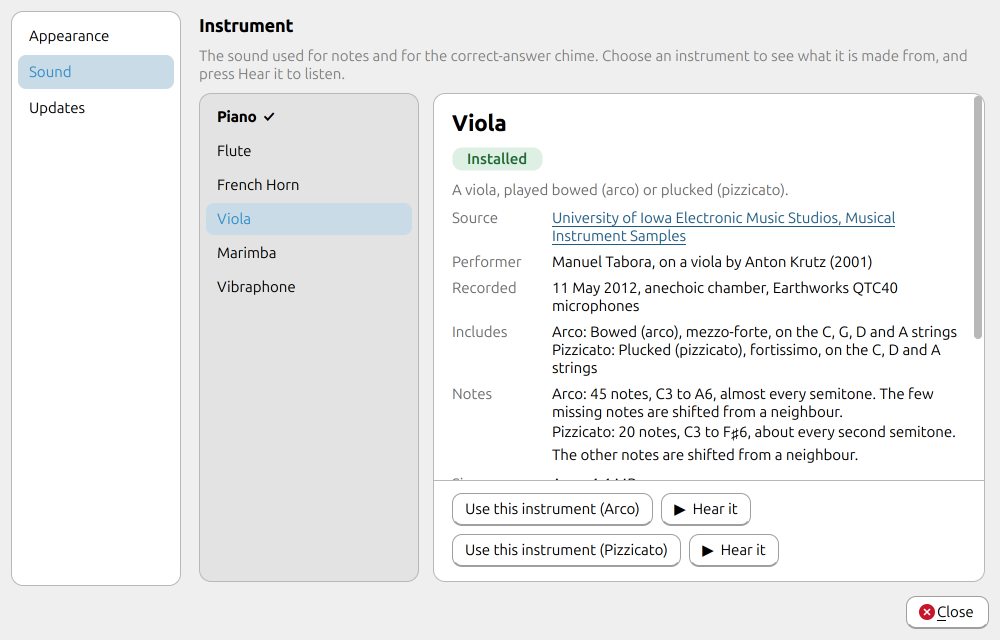
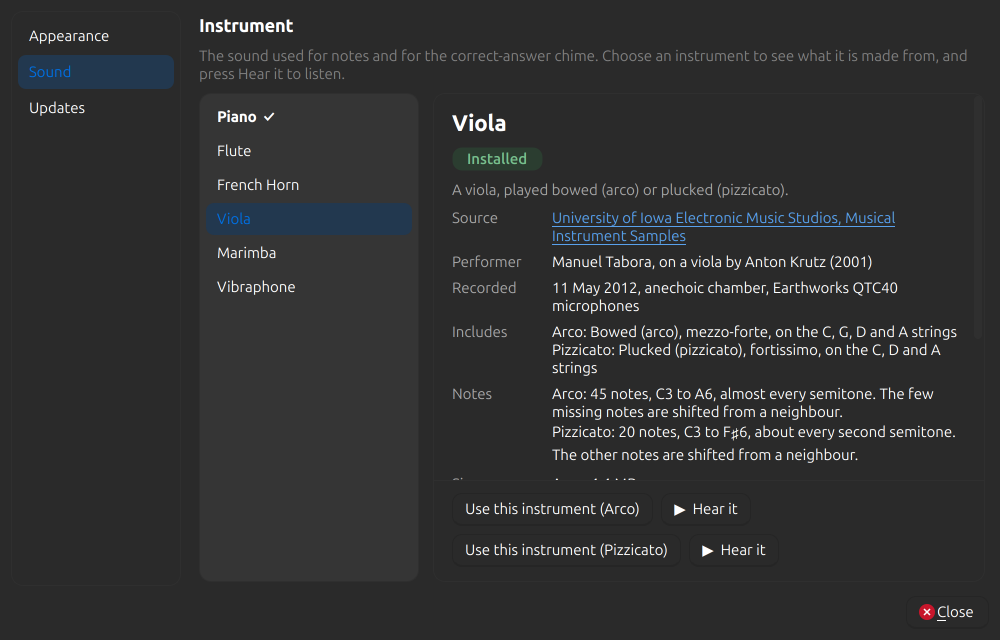
Instrument. The sound used for notes and for the correct-answer chime. The instruments are listed in a box on the left: piano, flute, French horn, viola, marimba and vibraphone. The one in use is in bold and ticked. Choose any of them to see a summary on the right of what its sound is made from:
- where the recordings come from, who played them, and when and how they were recorded;
- which articulation and dynamic were used, such as blown without vibrato at fortissimo or struck with yarn mallets;
- how many notes are recorded, their range, and whether every semitone is covered (notes in between are shifted from a neighbour);
- how much space they take, and the terms they are available under.
The viola can be played two ways, so it has one entry. Its page describes the Arco (bowed) and Pizzicato (plucked) recordings together, and has a row of buttons for each, such as Use this instrument (Arco). The list says which one is in use, such as “Viola (Pizzicato)”.
Press Use this instrument, or double-click the entry in the list, to switch to it. Press Hear it beside it to listen to a short arpeggio first without choosing it, even while sound is muted. Sound can also be muted with the speaker button in any exercise.
The flute, French horn and arco viola, which are blown or bowed, end each note as the next one begins, as a player would. So does the piano, which is played without the pedal: each note is damped as the next key goes down, so a scale does not blur together. Other struck and plucked instruments, such as the marimba and pizzicato viola, ring on. An instrument whose recordings are not installed in your copy of Alto is shown in italics and cannot be chosen, because it would only play as the synthesized piano.
Updates
Shows the version of Alto you are running, and has one choice: Follow the main branch. Off (the default), Check for updates… in the menu looks for the newest release. On, it looks for the newest change on the main branch instead, so you get each change as soon as it is merged, before it has been released. That may be less stable. It applies to a copy installed with the install script; a packaged copy always follows releases. See Getting started.
Exercise settings
Note Identification, Keyboard Identification and Note Construction have a sliders button at the top right of the exercise. It opens a pane on the right. Each row summarises its setting with a small picture, and clicking a row opens that setting’s page. See Exercises for what each option does.
Changing a setting starts a new question straight away, and the settings are remembered the next time you open Alto.
Where settings are stored
Settings are kept by Qt in your user configuration (for example ~/.config/alto/alto.conf on Linux), separate from your
practice history. See Your data.